
Your hospital’s website has beautiful imagery, smooth animations, and a modern design that won your marketing team awards.
It’s also completely unusable for the 61 million Americans with disabilities.
And here’s the kicker: You’re about to be sued for it.
Welcome to the intersection of healthcare website accessibility and legal compliance—where ignoring accessibility doesn’t just exclude patients who desperately need your services, it exposes you to lawsuits that average $20,000-$50,000 to settle (and much more if they go to trial).
In 2023 alone, over 4,500 ADA website accessibility lawsuits were filed in federal court. Healthcare providers are prime targets because:
- You’re bound by stricter regulations (Section 504, Section 508, ADA Title III)
- Your patients have higher disability rates than general population
- Health information is considered essential service (courts don’t accept “just call us” as alternative)
- You have deeper pockets than small businesses (plaintiff attorneys know this)
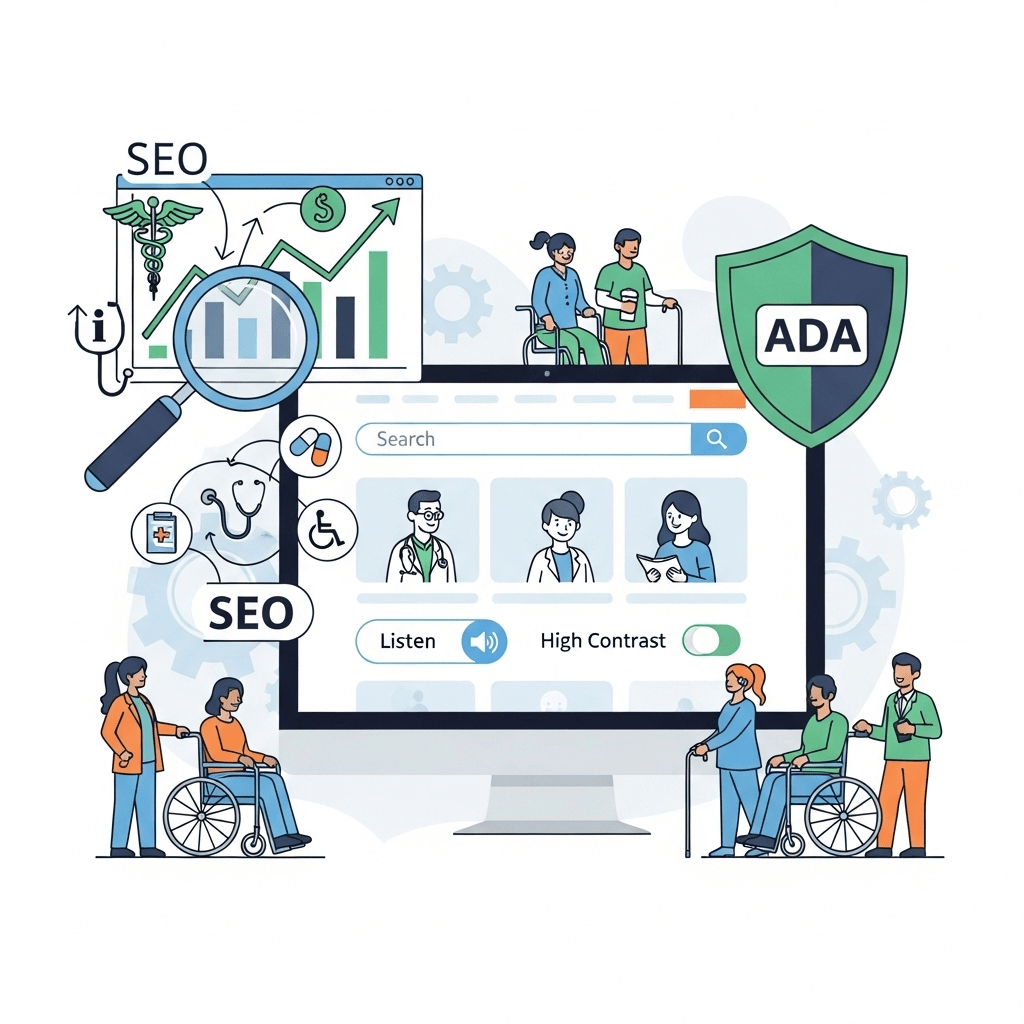
But here’s what most healthcare providers miss: ADA compliant medical websites aren’t just about avoiding lawsuits—they’re about SEO goldmines that competitors are ignoring.
Why? Because Google’s ranking algorithms increasingly mirror accessibility best practices. The features that make your site usable for people with disabilities are the SAME features that help search engines understand and rank your content.
Accessible healthcare content means:
- Semantic HTML structure (helps screen readers AND Google crawlers)
- Fast page load times (helps motor-impaired users AND Core Web Vitals)
- Clear navigation (helps cognitive disabilities AND user engagement metrics)
- Descriptive link text (helps blind users AND anchor text SEO)
- Readable content (helps dyslexic users AND readability ranking factors)
The brutal truth: Most medical websites are accessibility disasters. They rely on images without alt text, use color alone to convey information, have forms that screen readers can’t navigate, and create content only visual users can access.
But here’s the opportunity: Accessibility SEO healthcare is the ultimate competitive advantage. While competitors scramble to avoid lawsuits, you can build an inclusive patient experience that captures underserved audiences AND ranks higher in search results.
Ready to transform your medical website from a legal liability into an inclusive, high-ranking patient magnet? Let’s decode exactly how to make healthcare websites accessible and search optimized.
Table of Contents
ToggleWhat Is Healthcare Website Accessibility and Why Does It Matter for SEO?
Healthcare website accessibility means designing and developing medical websites so people with disabilities can perceive, understand, navigate, interact with, and contribute to the web.
The Legal Landscape for Medical Website Accessibility
Multiple laws apply to healthcare providers—more than most industries.
ADA Title III (Americans with Disabilities Act):
- Applies to “places of public accommodation”
- Courts increasingly rule websites are public accommodations
- Medical practices, hospitals, pharmacies explicitly covered
- Penalty: Private lawsuits, court-ordered remediation, attorney fees ($15,000-$50,000 average)
Section 504 of Rehabilitation Act:
- Applies to entities receiving federal funding
- Most hospitals, federally qualified health centers, Medicare/Medicaid providers covered
- Requires: Website accessibility for patients to access services
- Penalty: Loss of federal funding, civil penalties, private lawsuits
Section 508 of Rehabilitation Act:
- Applies to federal agencies and their contractors
- VA hospitals, military health facilities, federal contractors
- Requires: WCAG 2.0 Level AA compliance minimum
- Penalty: Contract termination, federal lawsuits
Affordable Care Act (ACA) Section 1557:
- Prohibits discrimination in health programs receiving federal funds
- Explicitly requires accessible websites and patient portals
- Penalty: HHS enforcement, complaints, civil rights violations
State laws (varies):
- California Unruh Civil Rights Act (particularly aggressive enforcement)
- New York Human Rights Law
- Florida Civil Rights Act
- Many states have additional accessibility requirements
Recent court precedents:
Robles v. Domino’s Pizza (2019): Supreme Court declined to hear appeal, letting stand ruling that websites must be accessible even without explicit ADA website regulations.
Gil v. Winn-Dixie (2017): Website must be accessible if linked to physical locations.
Andrews v. Blick Art Materials (2017): Website is “place of public accommodation” requiring accessibility.
Implications for healthcare:
- Your website is NOT optional for accessibility
- “Call us for assistance” is NOT sufficient accommodation
- Patient portals MUST be accessible
- Scheduling systems MUST work with assistive technology
The Disability Demographics You’re Currently Excluding
26% of U.S. adults have some type of disability.
That’s 61 million people—a larger market than you’re reaching with Spanish-language content.
Disability types affecting website use:
Visual disabilities (8.1 million blind or low vision):
- Screen reader users (software reads website aloud)
- Screen magnification users (severe low vision)
- Color blindness (8% of men, 0.5% of women)
What they need from websites:
- Alt text for all images
- Proper heading structure
- Color contrast ratios
- Text alternatives for non-text content
- Keyboard navigation
- Screen reader compatible forms
Mobility/Motor disabilities (20 million difficulty lifting/grasping):
- Cannot use mouse precisely
- Rely on keyboard navigation
- Use voice control software
- Use adaptive switches or head pointers
What they need:
- All functionality accessible via keyboard
- Large click targets (44×44 pixels minimum)
- No time limits on interactions
- Skip navigation links
- Focus indicators clearly visible
Hearing disabilities (11 million deaf or hard of hearing):
- Cannot hear audio content
- Rely on captions and transcripts
What they need:
- Captions for all video content
- Transcripts for audio content
- Visual alternatives for audio alerts
- Text-based communication options (chat, forms)
Cognitive disabilities (16 million with cognitive difficulty):
- Memory impairments
- Attention disorders
- Dyslexia and learning disabilities
- Autism spectrum
What they need:
- Clear, simple language
- Consistent navigation
- Avoid flashing/blinking content
- Provide extra time for forms
- Clear error messages
- Breadcrumb navigation
Temporary disabilities: Everyone experiences temporary disabilities:
- Broken arm (can’t use mouse)
- Eye surgery (vision impairment)
- Ear infection (hearing impairment)
- Concussion (cognitive impairment)
Situational disabilities: Normal users in challenging situations:
- Bright sunlight (can’t see low-contrast text)
- Noisy environment (can’t hear video)
- Holding baby while trying to navigate (one-handed)
- Driving (using voice commands)
The aging population:
- 40% of people over 65 have disabilities
- Your patient population skews older than general population
- Age-related vision, hearing, motor, and cognitive decline
Healthcare-specific accessibility needs:
Patients with the conditions you treat often have accessibility needs:
- Stroke patients (mobility, cognitive, speech impairments)
- Multiple sclerosis (vision, mobility impairments)
- Arthritis (motor impairments)
- Macular degeneration (vision impairment)
- Dementia/Alzheimer’s (cognitive impairments)
- Parkinson’s (motor impairments, tremors)
If you’re NOT building accessible websites, you’re excluding the EXACT patients who most need your services.
How Accessibility and SEO Overlap
The relationship between accessibility and SEO is symbiotic—practices that help one help the other.
Shared principles:
| Accessibility Best Practice | SEO Benefit |
|---|---|
| Semantic HTML (proper heading hierarchy) | Helps crawlers understand content structure and importance |
| Alt text for images | Provides indexable text content for image search |
| Descriptive link text | Improves anchor text relevance and context |
| Fast page load times | Core Web Vitals ranking factor |
| Mobile responsiveness | Mobile-first indexing requirement |
| Keyboard navigation | Indicates good site structure and UX |
| Clear content hierarchy | Helps featured snippets extraction |
| Readable text | Readability is ranking factor |
| Transcripts for video/audio | Provides indexable text content |
| Logical navigation | Improves crawlability and internal linking |
Why accessible sites rank better:
1. User engagement signals Accessible sites have:
- Lower bounce rates (users can actually use the site)
- Longer dwell time (users can navigate efficiently)
- Higher pages per session (clear navigation encourages exploration)
- Better conversion rates (forms actually work for everyone)
Google measures these engagement signals and uses them for rankings.
2. Technical excellence Accessible sites require:
- Clean, semantic code (easier for crawlers to parse)
- Performance optimization (faster for all users)
- Mobile optimization (responsive design for all devices)
- Structured data (helps assistive tech AND search engines)
These technical factors directly impact SEO.
3. Content quality Accessible content is:
- Well-organized with clear headings (easier to skim and understand)
- Written in plain language (readable by all literacy levels)
- Comprehensive with alternatives (transcripts add content depth)
- Structured logically (helps topic relevance)
These content factors improve rankings.
4. Broader reach = more signals Accessible sites reach:
- 26% more potential visitors (those with disabilities)
- Older demographics (higher healthcare utilization)
- International users (many accessibility features help non-native speakers)
- Mobile users in various contexts
More visitors = more engagement = stronger ranking signals.
Google’s explicit statements on accessibility:
Google’s Search Quality Evaluator Guidelines state: “Pages with poor accessibility are considered low quality.
Google’s Gary Illyes: “Accessibility is part of making a better web for everyone.”
While accessibility isn’t a direct ranking factor, the QUALITY signals it creates absolutely impact rankings.
Pro Tip: Think of accessibility as “SEO for humans with disabilities.” Just as you optimize for search engine crawlers, you’re optimizing for assistive technology “crawlers” like screen readers. The principles are remarkably similar.
For comprehensive understanding of how accessibility fits into healthcare SEO strategy, review foundational healthcare SEO and YMYL best practices.
What Are WCAG Standards and How Do They Apply to Medical Websites?
WCAG medical sites must follow Web Content Accessibility Guidelines (WCAG)—the international standard for web accessibility.
Understanding WCAG 2.1 Levels
WCAG 2.1 has three conformance levels:
Level A (minimum): Basic accessibility features. Most websites should easily achieve this, but many don’t.
Level AA (recommended): Industry standard for most websites. Courts typically require this level. ADA settlements usually specify WCAG 2.1 Level AA.
Level AAA (gold standard): Highest level of accessibility. Difficult to achieve for entire sites. Usually targeted for specific high-priority content.
For healthcare websites, Level AA is the legal and ethical standard you should meet.
The Four Principles of WCAG (POUR)
All WCAG guidelines fall under four foundational principles:
1. Perceivable Users must be able to perceive the information presented. It can’t be invisible to all their senses.
Key requirements:
- Text alternatives for non-text content
- Captions and alternatives for multimedia
- Content presented in different ways (without losing information)
- Easier to see and hear content (contrast, text size)
Healthcare examples:
- Alt text for anatomy diagrams
- Captions for health education videos
- Transcripts for patient testimonials
- High contrast for medical forms
2. Operable Users must be able to operate the interface. It can’t require interaction users can’t perform.
Key requirements:
- All functionality available via keyboard
- Users have enough time to read and interact
- Content doesn’t cause seizures (no flashing)
- Users can easily navigate and find content
Healthcare examples:
- Keyboard-accessible appointment scheduling
- No time limits on symptom checkers
- No autoplay videos with flashing surgical imagery
- Clear “Find a Doctor” navigation
3. Understandable Users must be able to understand the information and interface operation.
Key requirements:
- Text is readable and understandable
- Content appears and operates in predictable ways
- Users are helped to avoid and correct mistakes
Healthcare examples:
- Plain language health information (not medical jargon)
- Consistent navigation across patient portal
- Clear error messages on prescription refill forms
- Labels for all form fields
4. Robust Content must be robust enough to work with current and future technologies, including assistive technologies.
Key requirements:
- Maximize compatibility with assistive technologies
- Valid HTML/CSS
- Proper use of ARIA (Accessible Rich Internet Applications)
- Future-proof code
Healthcare examples:
- Screen reader compatible patient intake forms
- Properly coded interactive symptom checkers
- ARIA labels for custom calendar widgets
- Semantic HTML for condition descriptions
Critical WCAG Success Criteria for Healthcare Sites
Of 78 total WCAG 2.1 Level A/AA success criteria, these are most commonly violated on healthcare sites:
1.1.1 Non-text Content (Level A)
Requirement: All images, graphics, and non-text content must have text alternatives.
Healthcare violations:
- Medical imagery without alt text
- Infographics about health conditions with no description
- “Click here” buttons without descriptive labels
- Decorative images marked as meaningful (or vice versa)
Fix:
<!-- Bad -->
<img src="heart-anatomy.jpg">

<!-- Good -->
<img src="heart-anatomy.jpg" alt="Diagram of human heart showing four chambers: right atrium, right ventricle, left atrium, and left ventricle, with arrows indicating blood flow direction">

<!-- Decorative image (doesn't convey information) -->
<img src="decorative-line.jpg" alt="" role="presentation">
1.3.1 Info and Relationships (Level A)
Requirement: Information, structure, and relationships conveyed through presentation must be programmatically determinable.
Healthcare violations:
- Using
<div>and CSS instead of semantic HTML - Tables without proper headers
- Forms without properly associated labels
- Visual headings not marked up as headings
Fix:
<!-- Bad: Visual heading but not semantic -->
<div class="looks-like-heading">Symptoms of Diabetes</div>

<!-- Good: Semantic heading -->
<h2>Symptoms of Diabetes</h2>

<!-- Bad: Form without label association -->
<label>Email:</label>
<input type="email" name="email">

<!-- Good: Properly associated label -->
<label for="patient-email">Email Address:</label>
<input type="email" id="patient-email" name="email">
1.4.3 Contrast (Minimum) (Level AA)
Requirement: Text must have contrast ratio of at least 4.5:1 (3:1 for large text).
Healthcare violations:
- Light gray text on white backgrounds
- Low contrast “Schedule Appointment” buttons
- Pastel text colors on pastel backgrounds
- Light text over photos without sufficient backdrop
Fix:
- Test all text with contrast checker tools
- Dark text on light backgrounds (or vice versa)
- Buttons must meet contrast requirements
- Add text shadows or overlays on background images
Color contrast examples:
❌ Fails: #999999 gray text on #FFFFFF white (2.85:1 ratio) ✅ Passes: #595959 dark gray text on #FFFFFF white (7.0:1 ratio)
❌ Fails: #FF6B6B red “Emergency” button on #FFFFFF white (2.6:1 ratio) ✅ Passes: #CC0000 dark red “Emergency” button on #FFFFFF white (8.2:1 ratio)
2.1.1 Keyboard (Level A)
Requirement: All functionality must be available via keyboard.
Healthcare violations:
- Appointment calendars requiring mouse to select dates
- “Find a Doctor” filters only working with mouse clicks
- Dropdown menus that don’t open with Enter key
- Custom sliders that trap keyboard focus
Fix:
- Test entire site using only keyboard (Tab, Enter, Space, Arrows)
- Ensure all clickable elements are focusable
- Provide keyboard shortcuts for complex interactions
- Test with screen reader to verify keyboard navigation
2.4.1 Bypass Blocks (Level A)
Requirement: Mechanism to skip repeated navigation blocks.
Healthcare violations:
- No “Skip to main content” link
- Users must tab through 40 navigation items to reach content
- Repeated header on every page slows navigation
Fix:
<body>
  <a href="#main-content" class="skip-link">Skip to main content</a>

  <header>
    <!-- Navigation -->
  </header>

  <main id="main-content">
    <!-- Page content starts here -->
  </main>
</body>
CSS for skip link:
.skip-link {
  position: absolute;
  top: -40px;
  left: 0;
  background: #000;
  color: #fff;
  padding: 8px;
  text-decoration: none;
}

.skip-link:focus {
  top: 0;
}
2.4.4 Link Purpose (In Context) (Level A)
Requirement: Purpose of each link can be determined from link text or link text together with its programmatically determined link context.
Healthcare violations:
- “Click here” links everywhere
- Learn more” repeated 15 times on page
- “Read more” without context about what you’re reading
Fix:
<!-- Bad -->
<p>Our cardiology department offers comprehensive care. <a href="/cardiology">Click here</a>.</p>

<!-- Better -->
<p>Our cardiology department offers comprehensive care. <a href="/cardiology">Learn more about our cardiology services</a>.</p>

<!-- Best (if context is clear) -->
<h3>Cardiology Services</h3>
<p>Our cardiology department offers comprehensive heart care including diagnostics, treatment, and preventive services.</p>
<a href="/cardiology">Learn more</a>
2.5.5 Target Size (Level AAA, but recommended for healthcare)
Requirement: Touch/click targets should be at least 44×44 pixels.
Healthcare violations:
- Tiny checkboxes in medical history forms
- Small “X” to close modal dialogs
- Closely spaced date picker buttons
- Cramped mobile navigation icons
Fix:
/* Minimum touch target size */
button,
a,
input[type="checkbox"],
input[type="radio"] {
  min-width: 44px;
  min-height: 44px;
  /* Or add padding to achieve this size */
}
3.1.5 Reading Level (Level AAA, but critical for healthcare)
Requirement: Content should be understandable by someone with lower secondary education (roughly 8th-9th grade reading level).
Healthcare violations:
- Medical jargon without explanation
- Complex sentences with multiple clauses
- Passive voice making content unclear
- No plain language alternatives
Fix:
❌ Bad (16th grade level): “Patients presenting with exacerbation of chronic obstructive pulmonary disease characterized by increased dyspnea may benefit from bronchodilator therapy.”
✅ Good (8th grade level): “If your COPD (lung disease) symptoms get worse and you’re more short of breath, inhaled medications that open your airways may help you breathe easier.”
3.3.1 Error Identification (Level A)
Requirement: If input error is automatically detected, the item in error is identified and described to user.
Healthcare violations:
- Form shows “Error” but doesn’t say which field
- Red outline on field but no text explanation
- Error messages not programmatically associated with fields
- Unclear what the problem is or how to fix it
Fix:
<!-- Bad -->
<form>
  <label for="dob">Date of Birth:</label>
  <input type="text" id="dob" aria-invalid="true">
  <span style="color: red;">Error</span>
</form>

<!-- Good -->
<form>
  <label for="dob">Date of Birth:</label>
  <input type="text" id="dob" aria-invalid="true" aria-describedby="dob-error">
  <span id="dob-error" class="error" role="alert">
    Please enter date in MM/DD/YYYY format
  </span>
</form>
4.1.2 Name, Role, Value (Level A)
Requirement: For all UI components, name and role can be programmatically determined, and states/properties can be set programmatically.
Healthcare violations:
- Custom dropdowns that screen readers can’t interpret
- Toggle buttons without ARIA labels
- Expandable FAQs without proper ARIA attributes
- Interactive elements without roles
Fix:
<!-- Bad: Custom dropdown with no ARIA -->
<div class="dropdown" onclick="toggleDropdown()">
  Select Insurance Provider
  <div class="dropdown-content">...</div>
</div>

<!-- Good: Proper ARIA for custom widget -->
<div class="dropdown">
  <button
    id="insurance-button"
    aria-haspopup="listbox"
    aria-expanded="false"
    aria-labelledby="insurance-label insurance-button">
    Select Insurance Provider
  </button>
  <ul role="listbox" aria-labelledby="insurance-label" id="insurance-listbox">
    <li role="option">Blue Cross Blue Shield</li>
    <li role="option">Aetna</li>
    <li role="option">UnitedHealthcare</li>
  </ul>
</div>
Pro Tip: Download a screen reader (NVDA for Windows – free, VoiceOver for Mac – built-in) and try using your website with eyes closed. If you can’t complete basic tasks (find a doctor, schedule appointment, access patient portal), your patients with visual disabilities can’t either.
How Do You Audit Your Healthcare Website for Accessibility?
Before fixing accessibility issues, you need to identify them systematically.
Automated Accessibility Testing Tools
Automated tools catch ~30-40% of accessibility issues. Manual testing is essential for comprehensive accessibility.
Free automated testing tools:
WAVE (Web Accessibility Evaluation Tool)
- Website: wave.webaim.org
- What it does: Visual overlay showing errors, alerts, features
- Best for: Quick visual identification of issues
- Limitations: Doesn’t catch complex issues or screen reader problems
How to use:
- Go to wave.webaim.org
- Enter your URL
- Review errors (must fix) vs. alerts (review manually)
- Click icons to see detailed explanations
Axe DevTools (browser extension)
- Available for: Chrome, Firefox, Edge
- What it does: Inspects page and identifies violations
- Best for: Developers testing as they build
- Limitations: Only tests what’s visible (not hidden content, multi-step forms)
Google Lighthouse (built into Chrome)
- What it does: Audits accessibility, performance, SEO, best practices
- Best for: Overall site health check including accessibility
- Limitations: Limited accessibility checks compared to dedicated tools
How to use:
- Open Chrome DevTools (F12)
- Click “Lighthouse” tab
- Select “Accessibility” category
- Click “Analyze page load”
- Review score and issues
Pa11y (command line tool)
- What it does: Automated testing you can run on multiple pages
- Best for: Testing entire site at once
- Limitations: Requires technical setup
Paid automated testing tools:
Siteimprove
- Price: $5,000-$20,000/year depending on site size
- Features: Continuous monitoring, priority tracking, governance
- Best for: Enterprise healthcare systems
Deque Axe Monitor
- Price: Custom pricing
- Features: Automated scanning, issue tracking, CI/CD integration
- Best for: Large organizations with development teams
Level Access
- Price: Custom pricing
- Features: Testing + consulting services
- Best for: Organizations needing remediation help
Interpreting automated test results:
Priority levels:
Critical (must fix immediately):
- Missing alt text on informative images
- Forms without labels
- Very low contrast text (under 3:1)
- Keyboard traps (can’t tab out of element)
- Missing page titles
Important (fix soon):
- Moderate contrast issues (3:1-4.49:1)
- Missing skip links
- Unclear link text
- Missing language attributes
- Improper heading hierarchy
Advisory (nice to fix):
- Redundant alternative text
- Suspicious link text
- Very small text
- Adjacent links to same destination
False positives to watch for:
- Tools flagging decorative images without alt text (if properly marked as decorative, this is correct)
- Contrast issues on disabled buttons (often acceptable)
- Duplicate IDs that are actually in separate shadow DOMs
Manual Testing Procedures
Automated tools miss most accessibility barriers. Manual testing is essential.
1. Keyboard-only navigation test
Process:
- Disconnect mouse or don’t touch it
- Use only keyboard to navigate site:
- Tab (move forward)
- Shift+Tab (move backward)
- Enter (activate links/buttons)
- Space (activate buttons, check checkboxes)
- Arrow keys (navigate menus, radio buttons)
Test these tasks:
- Navigate to main content
- Use primary navigation menu
- Complete appointment request form
- Search for a doctor
- Filter results
- Open and close modals/dialogs
- Play/pause videos
- Expand/collapse accordions
Common issues found:
- Elements not keyboard accessible
- No visible focus indicator (can’t tell where you are)
- Keyboard trap (stuck in element, can’t escape)
- Illogical tab order
- Hidden content still focusable
2. Screen reader testing
Free screen readers:
- NVDA (Windows): nvaccess.org – free, open source
- VoiceOver (Mac): Built into macOS – Cmd+F5 to activate
- JAWS (Windows): freedomscientific.com – paid but free trial
- TalkBack (Android): Built into Android
- VoiceOver (iOS): Built into iPhone/iPad
Basic screen reader test:
- Turn on screen reader
- Close your eyes (simulate blindness)
- Try to complete common tasks using only audio
- Can you understand page structure?
- Can you fill out forms?
- Can you navigate menus?
- Do images have meaningful descriptions?
What to listen for:
- Are headings announced properly?
- Do images have descriptive alt text?
- Are form labels clearly associated with inputs?
- Can you understand page hierarchy?
- Do error messages make sense?
- Can you tell where you are on the page?
Common issues found:
- Alt text saying “image” or filename instead of description
- Form fields not labeled
- Buttons announced as “button” with no description
- No landmarks (can’t jump to main content, navigation)
- Confusing page structure
- Error messages not associated with fields
3. Visual accessibility testing
Color blindness simulation:
Use tools to simulate different types of color blindness:
- Chrome extension: Colorblind – Web Page Filter
- Online tool: color-blindness.com/coblis-color-blindness-simulator
Test:
- Can you still understand content with colors removed?
- Does color alone convey information? (red = error, green = success)
- Can colorblind users see all important elements?
Fix: Never rely on color alone. Add:
- Icons (✓ for success, ✗ for error)
- Text labels (“Success!”, “Error:”)
- Patterns/textures (not just color)
- Underlines for links (not just blue color)
Text sizing test:
Zoom browser to 200% and test:
- Does content reflow properly?
- Is anything cut off or overlapping?
- Can you still navigate?
- Are buttons still clickable?
Most common issues:
- Fixed-width containers cause horizontal scrolling
- Text overlaps images
- Navigation breaks
- Forms become unusable
Low vision simulation:
Use browser zoom or extensions like:
- NoCoffee Vision Simulator: Chrome/Firefox extension
- Funkify: Chrome extension with multiple disability simulations
Test for:
- Can you read text when zoomed?
- Is contrast sufficient?
- Are touch targets large enough?
- Does layout break at high zoom?
4. Mobile accessibility testing
Process: Test on actual mobile devices (not just responsive mode in browser):
- Can you tap all buttons easily?
- Are form fields large enough?
- Does pinch-to-zoom work?
- Can you use screen reader on mobile?
- Do videos have captions?
Common mobile accessibility issues:
- Touch targets too small (under 44×44 pixels)
- Text too small to read
- Horizontal scrolling required
- Gestures required (can’t use alternative input)
- Poor contrast in sunlight
5. Cognitive accessibility review
Checklist:
- [ ] Is language simple and clear? (8th grade reading level)
- [ ] Are instructions easy to follow?
- [ ] Is navigation consistent across pages?
- [ ] Are there clear headings and sections?
- [ ] Can users easily find what they need?
- [ ] Are error messages helpful and specific?
- [ ] Is there enough time to read/interact?
- [ ] Are there no flashing/blinking elements?
- [ ] Are distractions minimal?
Test:
- Give someone unfamiliar with your site a task
- Can they complete it without help?
- Do they get confused or lost?
- Do they understand medical terminology?
Creating an Accessibility Audit Report
Document findings in structured report:
Executive summary:
- Overall accessibility score (from automated tools)
- Number of Level A, AA, AAA violations
- High-priority issues requiring immediate attention
- Estimated level of effort to remediate
- Legal risk assessment
Detailed findings by WCAG principle:
Perceivable:
| Issue | Severity | WCAG | Example | Remediation |
|---|---|---|---|---|
| Missing alt text | Critical | 1.1.1 | Doctor headshots missing descriptions | Add descriptive alt text to all images |
| Low contrast | Critical | 1.4.3 | Gray text on white (2.9:1) | Change to darker gray (#595959) |
Operable:
| Issue | Severity | WCAG | Example | Remediation |
|---|---|---|---|---|
| Keyboard trap | Critical | 2.1.2 | Modal dialog traps focus | Add close button, Esc key functionality |
| No skip link | Important | 2.4.1 | Must tab through 40 nav items | Add “Skip to content” link |
Understandable:
| Issue | Severity | WCAG | Example | Remediation |
|---|---|---|---|---|
| Medical jargon | Important | 3.1.5 | “myocardial infarction” no explanation | Add “(heart attack)” after medical terms |
| Vague error | Important | 3.3.3 | “Invalid input” on form | Specify “Email must include @” |
Robust:
| Issue | Severity | WCAG | Example | Remediation |
|---|---|---|---|---|
| Invalid HTML | Important | 4.1.1 | Duplicate IDs, unclosed tags | Validate and fix HTML |
| Missing ARIA | Important | 4.1.2 | Custom dropdown no role | Add proper ARIA attributes |
Prioritization:
Phase 1 (Immediate – 0-30 days):
- Critical WCAG A violations
- High legal risk items
- Forms and appointment scheduling
- Patient portal access
Phase 2 (Important – 30-90 days):
- WCAG AA violations
- Main content pages
- Navigation improvements
- Provider directory
Phase 3 (Ongoing – 90+ days):
- WCAG AAA enhancements
- Older blog content
- Archived pages
- Nice-to-have improvements
Cost estimate:
DIY remediation (small practice):
- Tools: $0-$500/year (Wave, Lighthouse free; paid tools optional)
- Staff time: 40-120 hours depending on issues
- Total: $0-$10,000 (mostly staff time)
Professional remediation (medium practice/hospital):
- Audit: $5,000-$15,000
- Remediation: $15,000-$50,000
- Testing/validation: $5,000-$10,000
- Training: $2,000-$5,000
- Total: $27,000-$80,000
Enterprise remediation (large healthcare system):
- Comprehensive audit: $25,000-$50,000
- Remediation: $100,000-$300,000+
- Ongoing monitoring: $10,000-$30,000/year
- Total: $135,000-$380,000+
ROI justification:
- Lawsuit avoided: $20,000-$100,000+ saved
- 26% more potential patients reached
- Better SEO rankings (hard to quantify but significant)
- Better user experience for ALL patients
- Reduced support calls (clearer content)
- Compliance with legal requirements
- Ethical imperative to serve all patients
Pro Tip: Conduct accessibility audits quarterly. As you update content and add features, new accessibility issues inevitably arise. Regular audits catch problems before they accumulate or trigger lawsuits.
How Do You Make Common Healthcare Website Elements Accessible?
Let’s tackle the specific features most medical websites struggle with.
Accessible Forms and Appointment Scheduling
Forms are the #1 accessibility barrier on healthcare sites—and the #1 conversion tool. Get them right.
Form labels (essential):
<!-- Bad: Label not associated with input -->
<label>First Name</label>
<input type="text" name="fname">

<!-- Good: Label properly associated -->
<label for="first-name">First Name</label>
<input type="text" id="first-name" name="fname">

<!-- Also good: Label wrapping input -->
<label>
  First Name
  <input type="text" name="fname">
</label>
Required field indication:
<!-- Bad: Asterisk alone -->
<label for="email">Email *</label>
<input type="email" id="email" name="email">

<!-- Good: Asterisk + text + ARIA -->
<label for="email">
  Email <span class="required" aria-label="required">*</span>
</label>
<input type="email" id="email" name="email" required aria-required="true">
CSS to visually hide but keep accessible:
.visually-hidden {
  position: absolute;
  left: -10000px;
  width: 1px;
  height: 1px;
  overflow: hidden;
}
Use for required field explanation:
<label for="phone">
  Phone Number <span aria-hidden="true">*</span>
  <span class="visually-hidden">required</span>
</label>
Group related fields:
<fieldset>
  <legend>Patient Demographics</legend>

  <label for="fname">First Name</label>
  <input type="text" id="fname" name="fname" required>

  <label for="lname">Last Name</label>
  <input type="text" id="lname" name="lname" required>

  <label for="dob">Date of Birth</label>
  <input type="date" id="dob" name="dob" required>
</fieldset>
Helpful instructions:
<label for="password">
  Password
  <span id="password-requirements" class="help-text">
    Must be at least 8 characters with 1 number and 1 special character
  </span>
</label>
<input
  type="password"
  id="password"
  name="password"
  aria-describedby="password-requirements">
Accessible error handling:
<!-- Error state -->
<label for="email">Email Address</label>
<input
  type="email"
  id="email"
  name="email"
  aria-invalid="true"
  aria-describedby="email-error">
<span id="email-error" class="error" role="alert">
  Please enter a valid email address (example: na**@*****le.com)
</span>
Success messages:
<div role="status" aria-live="polite" class="success-message">
  ✓ Appointment request submitted successfully. You'll receive confirmation within 2 hours.
</div>
Date picker accessibility:
Native HTML date input is most accessible:
<label for="appointment-date">Preferred Appointment Date</label>
<input type="date" id="appointment-date" name="appointment-date" min="2025-01-15" max="2025-06-15">
If using custom date picker, ensure:
- Keyboard navigable (arrows to change dates, Tab to move between fields)
- Screen reader announces selected date
- Clear instructions provided
- Escape key closes picker
- Focus returns to input field when closed
Multi-step forms:
<nav aria-label="required">
  <ol class="progress-steps">
    <li aria-current="step">1. Select Provider</li>
    <li>2. Choose Date & Time</li>
    <li>3. Your Information</li>
    <li>4. Insurance Details</li>
    <li>5. Confirmation</li>
  </ol>
</nav>
Time limits on forms:
If absolutely necessary (security reasons):
<div role="timer" aria-live="polite" aria-atomic="true">
  Session expires in <span id="time-remaining">15:00</span> minutes
</div>
Better: Allow extending time:
<div role="alert">
  Your session will expire in 2 minutes.
  <button type="button">Extend Session</button>
</div>
Best: No time limits on patient-facing forms. Security concerns can be addressed other ways.
Pro Tip: Test all forms with screen reader AND keyboard only. Common issues: field labels not announced, error messages not associated with fields, can’t submit form with keyboard, unclear which field has error.
Accessible Patient Portals
Patient portals have unique accessibility challenges and higher legal scrutiny.
Login page accessibility:
<form action="/login" method="post">
  <h1>Patient Portal Login</h1>

  <label for="username">Username or Email</label>
  <input
    type="text"
    id="username"
    name="username"
    autocomplete="username"
    aria-required="true"
    required>

  <label for="password">Password</label>
  <input
    type="password"
    id="password"
    name="password"
    autocomplete="current-password"
    aria-required="true"
    required>

  <button type="submit">Log In</button>

  <p><a href="/forgot-password">Forgot password?</a></p>
  <p><a href="/register">Create new account</a></p>
</form>
Dashboard navigation:
<nav aria-label="required">
  <ul>
    <li><a href="/portal/appointments" aria-current="page">Appointments</a></li>
    <li><a href="/portal/messages">Messages <span class="badge">3 new</span></a></li>
    <li><a href="/portal/test-results">Test Results</a></li>
    <li><a href="/portal/medications">Medications</a></li>
    <li><a href="/portal/billing">Billing</a></li>
  </ul>
</nav>
Data tables (test results, appointment history):
<table>
  <caption>Recent Lab Results</caption>
  <thead>
    <tr>
      <th scope="col">Test</th>
      <th scope="col">Result</th>
      <th scope="col">Reference Range</th>
      <th scope="col">Date</th>
    </tr>
  </thead>
  <tbody>
    <tr>
      <th scope="row">Glucose</th>
      <td>95 mg/dL</td>
      <td>70-100 mg/dL</td>
      <td>Jan 10, 2025</td>
    </tr>
    <tr>
      <th scope="row">Cholesterol (Total)</th>
      <td>185 mg/dL</td>
      <td>Less than 200 mg/dL</td>
      <td>Jan 10, 2025</td>
    </tr>
  </tbody>
</table>
Complex table with scope attributes helps screen readers understand relationships:
Messaging system:
<article aria-labelledby="message-subject">
  <header>
    <h2 id="message-subject">Message from Dr. Martinez - Lab Results</h2>
    <p>
      <time datetime="2025-01-12T10:30:00">January 12, 2025 at 10:30 AM</time>
    </p>
  </header>

  <div class="message-body">
    <p>Your recent lab results look good. Your glucose and cholesterol are both within normal ranges...</p>
  </div>

  <footer>
    <button type="button">Reply</button>
    <button type="button">Download</button>
    <button type="button">Print</button>
  </footer>
</article>
Document downloads (PDFs, lab results):
Critical: PDFs must also be accessible!
<a href="/documents/lab-results-2025-01-10.pdf" download>
  Download Lab Results from January 10, 2025 (PDF, 245 KB)
  <span class="visually-hidden">Opens in new tab</span>
</a>

<!-- Also provide accessible HTML version -->
<a href="/test-results/2025-01-10">
  View results on this page (accessible HTML version)
</a>
Medication refill:
<form action="/refill" method="post">
  <h2>Request Prescription Refill</h2>

  <fieldset>
    <legend>Select Medication to Refill</legend>

    <div class="radio-group">
      <input type="radio" id="med-1" name="medication" value="lisinopril" required>
      <label for="med-1">
        <strong>Lisinopril 10mg</strong><br>
        Prescribed by: Dr. Martinez<br>
        Last filled: Dec 15, 2024<br>
        Refills remaining: 2
      </label>
    </div>

    <div class="radio-group">
      <input type="radio" id="med-2" name="medication" value="metformin" required>
      <label for="med-2">
        <strong>Metformin 500mg</strong><br>
        Prescribed by: Dr. Chen<br>
        Last filled: Dec 20, 2024<br>
        Refills remaining: 5
      </label>
    </div>
  </fieldset>

  <label for="pharmacy">Preferred Pharmacy</label>
  <select id="pharmacy" name="pharmacy" required>
    <option value="">Choose pharmacy</option>
    <option value="cvs-main">CVS Pharmacy - 123 Main St</option>
    <option value="walgreens-oak">Walgreens - 456 Oak Ave</option>
  </select>

  <button type="submit">Request Refill</button>
</form>
Pro Tip: Patient portals require especially rigorous accessibility testing because they’re considered “places of public accommodation” under ADA and violations often trigger lawsuits. Many patients with disabilities rely heavily on portals for managing their care.
Accessible Medical Images and Diagrams
Alt text is an art form for medical imagery—balance description with brevity.
Anatomy diagrams:
<!-- Simple diagram -->
<img
  src="heart-anatomy.jpg"
  alt="Cross-section of human heart showing four chambers (left and right atria, left and right ventricles) and major blood vessels">

<!-- Complex diagram - provide long description -->
<figure>
  <img
    src="detailed-heart.jpg"
    alt="Detailed anatomical diagram of human heart"
    aria-describedby="heart-description">

  <figcaption id="heart-description">
    <details>
      <summary>Detailed Description</summary>
      <p>This diagram shows a cross-sectional view of the human heart. The heart is divided into four chambers...</p>
      <!-- Full detailed description here -->
    </details>
  </figcaption>
</figure>
Medical procedure images:
<img
  src="knee-arthroscopy.jpg"
  alt="Arthroscopic view during knee surgery showing surgical instruments and joint space">
Before/after treatment photos:
<figure>
  <img src="before-treatment.jpg" alt="Patient's knee with visible swelling and limited range of motion before surgery">
  <figcaption>Before Treatment</figcaption>
</figure>

<figure>
  <img src="after-treatment.jpg" alt="Same patient's knee 6 months post-surgery showing full range of motion and no swelling">
  <figcaption>After Treatment - 6 Months Post-Surgery</figcaption>
</figure>
Infographics:
Complex infographics need full text alternative:
<figure>
  <img
    src="diabetes-infographic.jpg"
    alt="Infographic: 5 Warning Signs of Diabetes - see full description below"
    aria-describedby="diabetes-description">

  <figcaption id="diabetes-description">
    <h3>5 Warning Signs of Diabetes</h3>
    <ol>
      <li><strong>Increased thirst and urination:</strong> High blood sugar causes kidneys to work overtime...</li>
      <li><strong>Unexplained weight loss:</strong> Without insulin, body can't use glucose for energy...</li>
      <li><strong>Fatigue:</strong> Cells aren't getting glucose they need for energy...</li>
      <li><strong>Blurred vision:</strong> High blood sugar can cause lens of eye to swell...</li>
      <li><strong>Slow-healing sores:</strong> High blood sugar impairs circulation and immune function...</li>
    </ol>
  </figcaption>
</figure>
Charts and graphs:
<figure>
  <img
    src="patient-satisfaction-chart.jpg"
    alt="Bar chart showing patient satisfaction scores - data table provided below"
    aria-describedby="satisfaction-data">

  <table id="satisfaction-data">
    <caption>Patient Satisfaction Scores 2020-2024</caption>
    <thead>
      <tr>
        <th scope="col">Year</th>
        <th scope="col">Satisfaction Score</th>
      </tr>
    </thead>
    <tbody>
      <tr>
        <th scope="row">2020</th>
        <td>87%</td>
      </tr>
      <tr>
        <th scope="row">2021</th>
        <td>89%</td>
      </tr>
      <!-- etc -->
    </tbody>
  </table>
</figure>
Decorative images:
<!-- Decorative images should have empty alt text -->
<img src="decorative-medical-border.png" alt="" role="presentation">

<!-- NOT "image of stethoscope" - that's not adding information -->
Icon-only buttons:
<!-- Bad: No text alternative -->
<button><img src="calendar-icon.svg"></button>

<!-- Good: Alt text on icon -->
<button><img src="calendar-icon.svg" alt="Schedule Appointment"></button>

<!-- Best: ARIA label on button -->
<button aria-label="required">
  <img src="calendar-icon.svg" alt="" role="presentation">
</button>
Pro Tip: For complex medical diagrams, consider providing a downloadable text document with full description alongside the image. Screen reader users can download and review at their own pace rather than listening to lengthy description inline.
Accessible Video and Multimedia Content
Health education videos are common on medical sites—and commonly inaccessible.
Captions (essential):
<video controls>
  <source src="diabetes-education.mp4" type="video/mp4">
  <track kind="captions" src="diabetes-captions-en.vtt" srclang="en" label="English" default>
  <track kind="captions" src="diabetes-captions-es.vtt" srclang="es" label="Spanish">
  Your browser doesn't support HTML5 video.
</video>
Caption file format (WebVTT):
WEBVTT

00:00:00.000 --> 00:00:05.000
Dr. Martinez: Welcome to our diabetes education series.

00:00:05.500 --> 00:00:12.000
Today we'll discuss managing blood sugar levels through diet and exercise.

00:00:12.500 --> 00:00:18.000
[Background music plays]
Audio descriptions (for visual content not conveyed in audio):
<video controls>
  <source src="knee-surgery-procedure.mp4" type="video/mp4">
  <track kind="captions" src="surgery-captions.vtt" srclang="en" label="English">
  <track kind="descriptions" src="surgery-descriptions.vtt" srclang="en" label="Audio Descriptions">
</video>
Audio description example:
WEBVTT

00:01:30.000 --> 00:01:35.000
[Description] Surgeon makes initial incision on left side of knee.

00:02:15.000 --> 00:02:20.000
[Description] Arthroscopic camera inserted, showing interior of joint space.
Transcripts (provide for all videos and podcasts):
<article>
  <h2>Video: Understanding Type 2 Diabetes</h2>

  <video controls>
    <source src="diabetes-education.mp4">
    <track kind="captions" src="diabetes-captions.vtt">
  </video>

  <details>
    <summary>Full Video Transcript</summary>
    <div class="transcript">
      <p><strong>Dr. Martinez (00:00):</strong> Welcome to our diabetes education series...</p>
      <p><strong>Dr. Martinez (00:05):</strong> Today we'll discuss managing blood sugar...</p>
      <!-- Full transcript -->
    </div>
  </details>

  <a href="/transcripts/diabetes-education.pdf" download>
    Download Transcript (PDF)
  </a>
</article>
Video player controls accessibility:
Ensure video player controls are:
- Keyboard accessible (Tab to navigate, Space/Enter to activate)
- Properly labeled (Play, Pause, Volume, Fullscreen)
- Have sufficient contrast
- Large enough to click/tap easily
Embedded YouTube videos:
<iframe
  width="560"
  height="315"
  src="https://www.youtube.com/embed/VIDEO_ID?cc_load_policy=1"
  title="Understanding Diabetes: Symptoms and Treatment"
  frameborder="0"
  allow="accelerometer; autoplay; clipboard-write; encrypted-media; gyroscope; picture-in-picture"
  allowfullscreen>
</iframe>
Note: cc_load_policy=1 turns captions on by default
Accessible media player recommendations:
- Able Player: opensource.ncsu.edu/projects/able-player
- AMP (Accessible Media Player): by Accessible Player Project
- Video.js with accessibility plugins
These provide:
- Full keyboard control
- Screen reader announcements
- Customizable captions
- Audio descriptions support
- High contrast modes
Auto-play prohibition:
<!-- Bad: Auto-playing video disrupts screen readers -->
<video autoplay muted>
  <source src="promotional-video.mp4">
</video>

<!-- Good: Let users choose to play -->
<video controls>
  <source src="promotional-video.mp4">
</video>
Exception: Background videos without audio, marked as decorative, may autoplay if they don’t distract from content.
Pro Tip: Professional captioning services cost $1-$3 per minute of video. Auto-generated captions (YouTube, Rev.com) are 80-90% accurate but need manual review and correction for medical terminology. Budget for manual review of all auto-generated captions to ensure accuracy.
How Do You Implement Accessible Navigation and Site Structure?
Clear navigation benefits everyone—but it’s essential for users with disabilities.
Semantic HTML and Heading Hierarchy
Proper HTML structure is foundation of accessibility.
Landmark regions:
<!DOCTYPE html>
<html lang="en">
<head>
  <meta charset="UTF-8">
  <title>Memorial Hospital - Home</title>
</head>
<body>

  <header>
    <nav aria-label="required">
      <!-- Primary site navigation -->
    </nav>
  </header>

  <main>
    <!-- Primary page content -->

    <article>
      <!-- Main content article -->
    </article>

    <aside>
      <!-- Related sidebar content -->
    </aside>
  </main>

  <footer>
    <!-- Site footer -->
  </footer>

</body>
</html>
Why landmarks matter: Screen reader users can jump directly to regions:
- “Navigate to main content”
- “Navigate to navigation”
- “Navigate to search”
Without landmarks, they must listen to everything sequentially.
Heading hierarchy (critical):
<h1>Memorial Hospital Cardiology Department</h1>

  <h2>Heart Conditions We Treat</h2>

    <h3>Coronary Artery Disease</h3>
    <p>Content about CAD...</p>

    <h3>Arrhythmias</h3>
    <p>Content about arrhythmias...</p>

  <h2>Our Cardiology Team</h2>

    <h3>Dr. Sarah Martinez, MD</h3>
    <p>Bio...</p>

    <h3>Dr. James Chen, MD</h3>
    <p>Bio...</p>

  <h2>Schedule a Consultation</h2>
Rules for heading hierarchy:
- One H1 per page (page title)
- Don’t skip levels (H1 → H2 → H3, not H1 → H3)
- Headings describe following content
- Don’t use headings for style (use CSS instead)
Common mistakes:
❌ Multiple H1s on same page
❌ Skipping levels (H1 → H3)
❌ Using H4 because it “looks right” visually
❌ Using <div class="heading"> instead of actual heading tags
Testing heading structure:
Use browser extension “HeadingsMap” or screen reader to review outline:
H1: Memorial Hospital Cardiology Department
  H2: Heart Conditions We Treat
    H3: Coronary Artery Disease
    H3: Arrhythmias
  H2: Our Cardiology Team
    H3: Dr. Sarah Martinez, MD
    H3: Dr. James Chen, MD
  H2: Schedule a Consultation
Logical outline = accessible content structure.
Accessible Menu Systems
Complex menus are major accessibility barriers.
Simple navigation (preferred):
<nav aria-label="required">
  <ul>
    <li><a href="/">Home</a></li>
    <li><a href="/services">Services</a></li>
    <li><a href="/providers">Find a Doctor</a></li>
    <li><a href="/locations">Locations</a></li>
    <li><a href="/patients">Patient Resources</a></li>
    <li><a href="/contact">Contact</a></li>
  </ul>
</nav>
Dropdown/mega menu (if necessary):
<nav aria-label="required">
  <ul class="main-menu">
    <li>
      <a href="/services">Services</a>
      <button
        aria-expanded="false"
        aria-controls="services-submenu"
        aria-label="required">
        ▼
      </button>

      <ul id="services-submenu" hidden>
        <li><a href="/services/cardiology">Cardiology</a></li>
        <li><a href="/services/orthopedics">Orthopedics</a></li>
        <li><a href="/services/neurology">Neurology</a></li>
      </ul>
    </li>
  </ul>
</nav>
JavaScript to manage menu:
const menuButton = document.querySelector('[aria-controls="services-submenu"]');
const submenu = document.getElementById('services-submenu');

menuButton.addEventListener('click', () => {
  const expanded = menuButton.getAttribute('aria-expanded') === 'true';

  menuButton.setAttribute('aria-expanded', !expanded);
  submenu.hidden = expanded;
});

// Close on Escape key
document.addEventListener('keydown', (e) => {
  if (e.key === 'Escape' && !submenu.hidden) {
    menuButton.setAttribute('aria-expanded', 'false');
    submenu.hidden = true;
    menuButton.focus(); // Return focus to button
  }
});
Mobile hamburger menu:
<button
  class="hamburger"
  aria-expanded="false"
  aria-controls="mobile-menu"
  aria-label="required">
  <span></span>
  <span></span>
  <span></span>
</button>

<nav id="mobile-menu" hidden>
  <ul>
    <li><a href="/">Home</a></li>
    <li><a href="/services">Services</a></li>
    <!-- etc -->
  </ul>
</nav>
Breadcrumb navigation:
<nav aria-label="required">
  <ol class="breadcrumb">
    <li><a href="/">Home</a></li>
    <li><a href="/services">Services</a></li>
    <li><a href="/services/cardiology">Cardiology</a></li>
    <li aria-current="page">Heart Failure Treatment</li>
  </ol>
</nav>
Search functionality:
<form role="search" action="/search">
  <label for="site-search" class="visually-hidden">
    Search Memorial Hospital website
  </label>
  <input
    type="search"
    id="site-search"
    name="q"
    placeholder="Search..."
    autocomplete="off"
    aria-autocomplete="list"
    aria-controls="search-suggestions">
  <button type="submit">
    <span class="visually-hidden">Search</span>
    <svg aria-hidden="true"><!-- magnifying glass icon --></svg>
  </button>
</form>

<!-- Auto-suggest results -->
<ul id="search-suggestions" role="listbox" hidden>
  <li role="option">Cardiology Department</li>
  <li role="option">Cardiac Rehabilitation</li>
  <li role="option">Cardiologists Near Me</li>
</ul>
Pro Tip: Test all navigation with keyboard only. Can you access every menu item? Can you close menus? Does focus remain visible? Are you ever trapped? If you can’t navigate with keyboard, neither can many users with disabilities.
Skip Links and Page Bypass Mechanisms
Skip links let users bypass repetitive content.
Implementation:
<body>
  <!-- Skip link appears first in source order -->
  <a href="#main-content" class="skip-link">
    Skip to main content
  </a>

  <!-- Or multiple skip links -->
  <div class="skip-links">
    <a href="#main-content">Skip to content</a>
    <a href="#navigation">Skip to navigation</a>
    <a href="#search">Skip to search</a>
  </div>

  <header>
    <!-- Header with logo, navigation, etc. -->
  </header>

  <main id="main-content" tabindex="-1">
    <h1>Page Title</h1>
    <!-- Main content starts here -->
  </main>
</body>
CSS for skip link (hidden until focused):
.skip-link {
  position: absolute;
  top: -40px;
  left: 0;
  background: #000;
  color: #fff;
  padding: 8px 12px;
  text-decoration: none;
  z-index: 9999;
  font-weight: bold;
}

.skip-link:focus {
  top: 0;
}
Alternative: Always-visible skip link
Some accessibility advocates prefer always-visible skip links (removes surprise factor).
.skip-link {
  position: absolute;
  top: 0;
  left: 0;
  background: #000;
  color: #fff;
  padding: 8px 12px;
  text-decoration: none;
  z-index: 9999;
}

.skip-link:focus {
  outline: 3px solid #fff;
  outline-offset: 2px;
}
When skip links are essential:
- Sites with 10+ navigation items
- Sites with advertising/banners before content
- Complex headers with multiple menus
- Sites with repetitive sidebars
Healthcare sites almost always need skip links due to complex navigation and patient portal menus.
Pro Tip: Test skip link by pressing Tab immediately when page loads. Skip link should be first focusable element and clearly visible when focused. Activating it should move focus directly to main content.
What Are the Consequences of Non-Compliance?
Understanding the risks motivates action.
Legal Risks and ADA Lawsuits
The lawsuit reality:
Average costs:
- Settlement: $20,000-$50,000
- Attorney fees (yours): $15,000-$75,000
- Plaintiff attorney fees (if you lose): $30,000-$100,000
- Court-ordered remediation: $10,000-$100,000+
- Ongoing monitoring: $5,000-$15,000/year
- Total: $80,000-$340,000+
Timeline:
- Receive demand letter
- Negotiate settlement (3-6 months)
- Or go to court (12-24+ months)
- Remediation period (6-12 months)
- Ongoing compliance monitoring (1-3 years)
Real cases (healthcare specific):
Thurston v. Pomona Valley Hospital Medical Center (2020)
- Issue: Patient portal inaccessible to blind users
- Outcome: Hospital agreed to make portal WCAG 2.1 AA compliant
- Cost: Undisclosed settlement + remediation
Robles v. Hospital for Special Surgery (2018)
- Issue: Website and patient portal not screen reader accessible
- Outcome: Settlement requiring full accessibility compliance
- Cost: Undisclosed settlement + $50,000+ remediation estimated
Pattern: Hospitals and medical practices are prime lawsuit targets because:
- Deep pockets (can afford settlements)
- Essential services (courts don’t accept “call us” alternative)
- Patient population includes high disability rates
- Federal funding triggers additional regulations
Serial plaintiff law firms:
Certain law firms systematically target healthcare providers:
- Screen websites with automated tools
- Identify accessibility violations
- Send demand letters to hundreds of providers
- Settle for $10,000-$30,000 each (easier than court)
Your practice is likely on their list if:
- You have patient portal
- You have online appointment scheduling
- Your website has obvious accessibility issues
- You’re in California, New York, Florida (highest lawsuit states)
OCR Complaints and Federal Enforcement
Office for Civil Rights (HHS) enforces healthcare accessibility.
Section 1557 ACA complaints:
Any patient can file complaint with OCR:
- “I couldn’t access patient portal due to my disability”
- “Website forms don’t work with screen reader”
- “Videos have no captions”
OCR investigation process:
- Patient files complaint (free, online)
- OCR notifies provider (you have 30 days to respond)
- OCR investigates (requests documentation, screenshots, testing)
- OCR issues findings
- If violation found: Corrective action plan required
- Follow-up monitoring
Potential outcomes:
- Voluntary compliance agreement
- Corrective action plan
- Civil monetary penalties (rare but possible)
- Loss of federal funding (nuclear option, very rare)
Recent OCR enforcement:
2022: OCR issued guidance that websites and patient portals must be accessible under Section 1557.
2023: OCR investigating multiple complaints about inaccessible patient portals.
Trend: Increasing enforcement of website accessibility in healthcare.
Compliance timeline: OCR typically gives 30-90 days to develop remediation plan, then 6-12 months to implement.
Reputational Damage
Beyond legal costs, accessibility lawsuits damage reputation.
Public record:
- Lawsuits are public documents
- Press coverage: “Local Hospital Sued for Discriminating Against Blind Patients”
- Google search: “[Your Practice Name] lawsuit” returns accessibility lawsuit
Patient perception:
- “If they don’t care about accessibility, what else don’t they care about?”
- Disability community networks share information about inaccessible providers
- Reviews mentioning inaccessibility
Staff morale:
- Pride in working for discriminatory organization
- Physicians concerned about personal reputation
- Recruitment challenges
Competitive disadvantage:
- Accessible competitors attract disability market
- 26% of population excluded from your practice
- Word-of-mouth spreads within disability community
Insurance implications:
- Malpractice insurance may increase
- Some insurers exclude accessibility claims
- Difficulty obtaining cyber liability insurance
The damage lasts years even after remediation. Search results persist. Community reputation takes time to rebuild.
The Positive Business Case for Accessibility
Flip the narrative: Accessibility is business opportunity, not just compliance.
Market expansion:
- 61 million Americans with disabilities
- $490 billion in disposable income (disability market)
- Family and friends influence (caregivers, spouses, children)
- Aging population (40% over 65 have disabilities)
SEO benefits (as discussed):
- Higher rankings
- Better engagement metrics
- Featured snippets
- Voice search optimization
Better user experience for ALL:
- Captions help people in noisy environments
- Keyboard navigation helps people using tablets
- Clear language helps non-native speakers
- High contrast helps people in bright sunlight
Reduced support costs:
- Fewer “I can’t access portal” calls
- Clearer content = fewer confused patients
- Better forms = fewer errors and resubmissions
Brand differentiation:
- “We care about ALL patients”
- Social responsibility messaging
- Appeals to conscious consumers
Staff efficiency:
- Semantic HTML easier to maintain
- Consistent code standards
- Better long-term scalability
Risk mitigation:
- Lawsuit prevention ($80,000+ saved)
- OCR complaint avoidance
- Future-proofing as regulations tighten
Innovation enablement:
- Voice interfaces require accessible foundation
- AI assistants rely on structured content
- Emerging technologies benefit from accessibility
ROI calculation:
Investment: $40,000 (audit + remediation for medium practice)
Returns:
- Lawsuit avoided: $80,000 saved
- 5% more patients from disability community: $50,000-$200,000/year
- Better SEO rankings: $20,000-$100,000/year value
- Reduced support calls: $5,000-$15,000/year
- Brand enhancement: Priceless
Payback period: 3-6 months
Ongoing ROI: 300-500% annually
Pro Tip: Frame accessibility as patient-centered care, not legal compliance. “We’re making our services accessible to ALL patients” resonates better with leadership than “We might get sued.” Both are true, but patient care mission motivates better than fear.
Final Thoughts: Your Healthcare Accessibility Roadmap
Here’s the liberating truth about healthcare website accessibility: You don’t have to fix everything overnight.
But you do need to start. Today.
The healthcare providers succeeding at accessibility don’t aim for perfection—they aim for systematic, continuous improvement. They understand that accessibility is a journey, not a destination.
Your 90-day accessibility transformation plan:
Days 1-30: Assessment and Planning
- [ ] Run automated accessibility scans (WAVE, Lighthouse)
- [ ] Conduct keyboard-only navigation test
- [ ] Test with screen reader (NVDA or VoiceOver)
- [ ] Document all Level A and AA violations
- [ ] Prioritize critical issues (patient portal, forms, scheduling)
- [ ] Get executive buy-in and budget approval
Days 31-60: Critical Remediation
- [ ] Fix all forms (add labels, error handling, instructions)
- [ ] Add alt text to all meaningful images
- [ ] Implement proper heading hierarchy
- [ ] Add skip navigation links
- [ ] Fix color contrast issues
- [ ] Make patient portal keyboard accessible
- [ ] Add captions to all videos
Days 61-90: Enhancement and Documentation
- [ ] Improve content readability (plain language)
- [ ] Create accessibility statement page
- [ ] Train staff on accessibility
- [ ] Establish ongoing testing procedures
- [ ] Document accessibility policies
- [ ] Plan for remaining WCAG AA compliance
The accessibility mindset shift:
From: “We need accessibility to avoid lawsuits”
To: “We need accessibility to serve all our patients with dignity”
From: “Accessibility is expensive and hard”
To: “Accessibility is smart business and better patient care”
From: “We’ll fix accessibility someday”
To: “We’re integrating accessibility into everything we build”
From: “Accessibility is the web team’s problem”
To: “Accessibility is everyone’s responsibility”
The competitive reality:
Most of your competitors have terrible website accessibility. They’re ignoring it, hoping to avoid lawsuits through obscurity.
That won’t work much longer. Enforcement is increasing. Lawsuits are multiplying. Patient expectations are rising.
The healthcare providers building accessible websites today will:
- Avoid lawsuits while competitors get sued
- Rank higher in search while competitors struggle
- Serve underserved markets while competitors exclude them
- Build patient loyalty through inclusion
- Sleep better knowing they’re doing the right thing
The intersection of accessibility, SEO, and patient care:
This is where magic happens. When you optimize for screen readers, you optimize for Google crawlers. When you write clear content for cognitive disabilities, you write better content for everyone. When you build keyboard navigation, you build logical information architecture.
Accessibility isn’t separate from SEO. Accessibility IS SEO.
And both are simply expressions of patient-centered care in digital form.
The ethical imperative:
Healthcare is unique. You’re not selling widgets. You’re providing essential services to people who are sick, injured, scared, or in pain.
Some of those people are blind. Some have motor impairments. Some have cognitive disabilities. Some are Deaf. All deserve equal access to your care.
When your website is inaccessible, you’re telling people with disabilities: “Your health needs don’t matter enough to us to make our website work for you.”
That’s not who you are. That’s not why you went into healthcare.
Make your website reflect your patient care values.
The tools are free. The guidelines are clear. The business case is compelling. The moral case is overwhelming.
What’s stopping you?
Disclaimer: This guide provides general information about website accessibility for healthcare providers. It is not legal advice. Laws and regulations vary by jurisdiction and change frequently. Consult with attorneys specializing in ADA compliance and healthcare law for specific legal guidance. Accessibility requirements evolve, and achieving WCAG compliance should be viewed as an ongoing process, not a one-time project. The information in this guide is current as of 2025 but may become outdated as standards and regulations evolve.
🏥 Healthcare Website Accessibility & SEO Tool
Powered by SEOProJournal.com | Your Complete Healthcare SEO Resource
Healthcare Website Accessibility ROI Calculator
Calculate the financial impact of making your medical website ADA compliant and accessible
📊 Legal Cost Breakdown: Non-Compliant vs. Proactive
💰 Calculate Your Accessibility ROI
📈 Your Accessibility ROI Analysis
✅ WCAG 2.1 Level AA Compliance Checklist
Click items as you complete them. Track your progress toward full accessibility compliance.
🎯 WCAG Compliance Levels
Level A (Minimum)
- Alt text for images
- Keyboard accessibility
- Form labels
- Heading structure
- No keyboard traps
Level AA (Required)
- 4.5:1 color contrast
- Visible focus indicators
- Multiple navigation methods
- Error suggestions
- Status messages
Level AAA (Gold Standard)
- 7:1 color contrast
- Sign language interpretation
- Extended audio descriptions
- 8th grade reading level
- Timing adjustable
📱 Accessibility Testing Tools
Free Automated Tools
- WAVE Web Accessibility Tool
- Google Lighthouse
- axe DevTools Browser Extension
- NVDA Screen Reader (Windows)
- VoiceOver (Mac/iOS built-in)
Manual Testing
- Keyboard-only navigation test
- Screen reader compatibility
- Color contrast checker
- Mobile device testing
- Zoom to 200% functionality
Enterprise Solutions
- Siteimprove ($5K-$20K/year)
- Deque Axe Monitor (Custom)
- Level Access Platform
- AudioEye Compliance Service
- UserWay Accessibility Widget
📚 Want to learn more about Healthcare SEO & Accessibility?
Visit SEOProJournal.com for comprehensive guides on healthcare digital marketing, YMYL compliance, patient-focused content optimization, and reputation management strategies.
© 2025 SEOProJournal.com | Healthcare SEO & Accessibility Specialists
Related posts:
- Medical E-A-T Optimization: Building Expertise, Authoritativeness, and Trust
- Healthcare SEO: The YMYL-Compliant Guide to Medical Website Optimization in 2025
- Telehealth and Virtual Care SEO: Optimizing for Online Medical Services
- Hospital and Healthcare System SEO: Multi-Location Optimization Strategy