
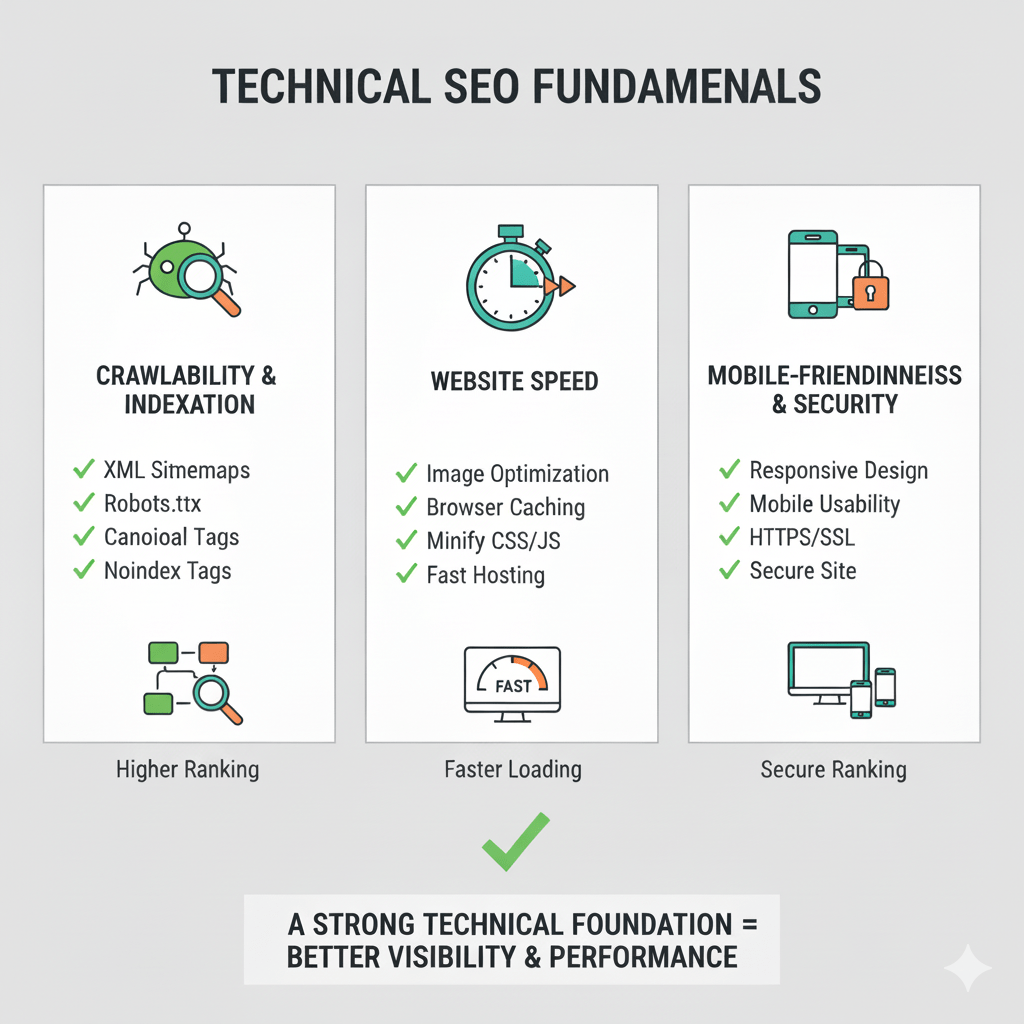
Your website could be a masterpiece of content and design. But if search engines can’t crawl it, can’t understand it, or find it slower than molasses in January, none of that matters.
Technical SEO fundamentals are the invisible architecture holding your entire search presence together. Miss one critical element—a broken robots.txt file, a redirect chain, a server response that times out—and Google might never see your brilliant content at all.
According to Ahrefs’ research analyzing 300 million web pages, 90.63% of pages get zero organic traffic from Google. Not because their content is bad, but often because technical barriers prevent proper crawling, indexing, or ranking.
This guide strips away the complexity and gives you the complete technical foundation every search-ready website needs. From crawlability to site speed to structured data, you’ll learn how to build a site that search engines love and users trust.
Table of Contents
ToggleWhat Is Technical SEO and Why Does It Control Your Rankings?
Technical SEO is the process of optimizing your website’s infrastructure to help search engines crawl, interpret, and index your content efficiently.
Think of it as building the roads, bridges, and traffic signals that guide Googlebot through your site. Beautiful destinations (content) mean nothing if no one can reach them.
The Three Pillars of Technical SEO
1. Crawlability: Can search engines access and navigate your pages?
2. Indexability: Can search engines understand and store your content?
3. Renderability: Can search engines properly interpret JavaScript and dynamic content?
Get these three right, and you’ve cleared 80% of the technical barriers blocking most sites from their ranking potential.
Why Technical SEO Matters More Than Ever
Google’s algorithms have gotten sophisticated. They parse JavaScript, understand user experience signals, and prioritize mobile-first experiences.
But that sophistication doesn’t mean they’re forgiving of technical mistakes. Crawl budget limitations, Core Web Vitals requirements, and mobile-first indexing standards demand technically sound foundations.
According to Google’s own research, the average site wastes 35-50% of its crawl budget on duplicate content, redirect chains, and low-value pages.
For comprehensive on-page optimization strategies that complement technical SEO, check out our guide on mastering on-page SEO elements.
How Does Googlebot Actually Crawl Your Website?
Googlebot is Google’s web crawler—a bot that discovers, crawls, and indexes web pages. Understanding how it works is step one of technical optimization.
The Crawling Process: From Discovery to Index
Step 1 – Discovery: Googlebot finds URLs through sitemaps, internal links, external backlinks, or direct submissions.
Step 2 – Crawl Queue: URLs wait in a queue based on PageRank, freshness signals, and crawl budget allocation.
Step 3 – Fetching: Googlebot requests the page from your server (like a browser loading a page).
Step 4 – Rendering: Google processes HTML, CSS, and JavaScript to understand the page’s full content.
Step 5 – Indexing: Google analyzes content, extracts signals, and stores the page in its index (or decides not to).
Step 6 – Ranking: Indexed pages compete for rankings based on 200+ ranking factors.
Every technical optimization you make either speeds up this process or creates friction that slows it down.
What Is Crawl Budget and Why Should You Care?
Crawl budget is the number of pages Googlebot will crawl on your site in a given timeframe. It’s determined by:
- Crawl rate limit: How fast Google can crawl without overloading your server
- Crawl demand: How much Google wants to crawl based on popularity and freshness
Small sites (under 1,000 pages) rarely face crawl budget issues. But for larger sites, wasting crawl budget on duplicate pages, infinite URL parameters, or redirect chains means important pages never get crawled.
According to research from Screaming Frog analyzing 6.4 million pages, sites with optimized crawl efficiency see 15-25% more pages indexed within the same crawl budget allocation.
Pro Tip: Use Google Search Console’s “Crawl Stats” report to monitor how efficiently Googlebot crawls your site. If you see high response times or lots of 404s, you’re wasting precious crawl budget.
⚙️ Technical SEO Workflow
Complete optimization process - Pinch to zoom or use buttons
📱 Mobile Tips:
Use two fingers to pinch and zoom on the diagram
Scroll inside the white box to see different parts of the workflow
Tap the zoom buttons above for quick zoom control
Site Architecture: Building an SEO-Friendly Foundation
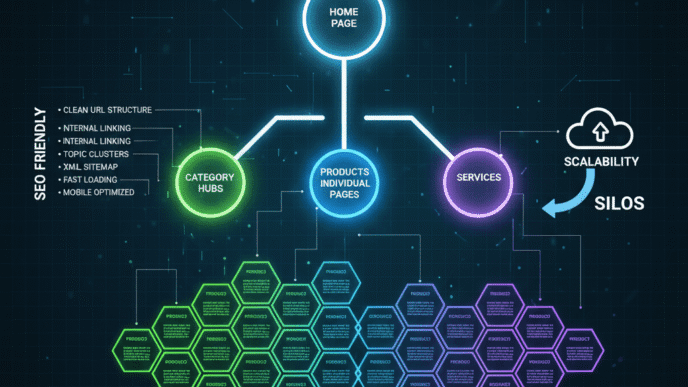
Your site architecture determines how easily search engines and users navigate your content. Get this wrong, and even perfect pages might never rank.
The Flat vs. Deep Architecture Debate
Flat architecture: Pages are 2-3 clicks from homepage (Homepage → Category → Product)
Deep architecture: Pages buried 5-6+ clicks deep (Homepage → Section → Category → Subcategory → Product)
Google prefers flat architecture because:
- Important pages receive more link equity
- Crawlers discover content faster
- Users find what they need with fewer clicks
Best practice: Keep critical pages within 3 clicks of your homepage. For massive sites, use strategic internal linking to bring deep pages closer to the surface.
URL Structure Best Practices
SEO-friendly URLs are descriptive, hierarchical, and readable by humans and bots.
Bad URL: example.com/index.php?id=47829&cat=12
Good URL: example.com/technical-seo/site-architecture/
URL structure rules:
- Use hyphens (-) not underscores (_) to separate words
- Keep URLs short (under 100 characters when possible)
- Use lowercase letters consistently
- Include target keywords naturally
- Avoid parameters and session IDs when possible
- Mirror your content hierarchy in the URL path
Learn more about optimal URL naming in our article on how file names affect SEO performance.
Internal Linking Strategy: The Hidden Ranking Multiplier
Internal links pass authority between pages and guide crawlers to your most important content.
Strategic internal linking:
- Distributes PageRank throughout your site
- Establishes topical authority through topic clusters
- Helps Google understand content relationships
- Increases crawl depth and frequency
Internal linking best practices:
- Link from high-authority pages to important target pages
- Use descriptive anchor text (avoid “click here” or “read more”)
- Prioritize contextual links over sidebar/footer links
- Create hub pages that link to related content clusters
- Aim for 2-5 contextual internal links per 1,000 words
According to Moz’s research on internal linking, pages with strong internal link profiles rank an average of 40% higher than pages with weak internal linking.
Robots.txt: Your First Line of Crawl Control
The robots.txt file sits in your site’s root directory and tells search engines which pages they can or can’t crawl.
Understanding Robots.txt Syntax
Location: yoursite.com/robots.txt
Basic syntax:
User-agent: Googlebot
Disallow: /admin/
Allow: /admin/public/

User-agent: *
Disallow: /private/
What this means:
- Googlebot can’t crawl
/admin/except/admin/public/ - All other bots can’t crawl
/private/
What Should You Block in Robots.txt?
Block these:
- Admin panels and login pages
- Duplicate content (print versions, session URLs)
- Thank-you pages and conversion confirmations
- Search result pages and filtered URLs
- Staging environments and development folders
Never block:
- CSS and JavaScript files (Google needs these for rendering)
- Important content pages
- XML sitemaps
- Media files you want indexed
Critical Warning: Blocking a URL in robots.txt prevents crawling but NOT indexing. If the URL has backlinks, Google might still index it without crawling. Use
noindexmeta tags for true index control.
Common Robots.txt Mistakes That Kill Rankings
Mistake #1: Accidentally blocking all crawlers with Disallow: /
This nuclear option blocks everything. Check your robots.txt immediately if you’re getting zero organic traffic.
Mistake #2: Blocking JavaScript and CSS resources
Google announced in 2014 that blocking JS/CSS prevents proper rendering. Yet HTTPArchive data from 2024 shows 23% of sites still block critical rendering resources.
Mistake #3: Not including your sitemap location
Add Sitemap: https://yoursite.com/sitemap.xml at the bottom of robots.txt to help crawlers find it immediately.
XML Sitemaps: Your Direct Line to Google
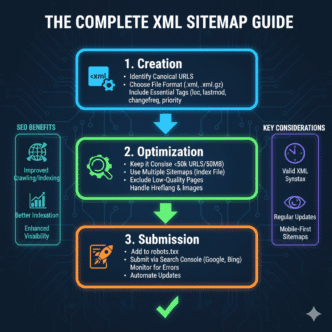
An XML sitemap is a file listing all important URLs you want search engines to crawl. Think of it as a roadmap handed directly to Googlebot.
What Should Go in Your Sitemap?
Include:
- All indexable content pages (articles, products, services)
- Pages updated frequently
- Pages with rich media (videos, images)
- Priority pages that might not have strong internal linking
Exclude:
- Duplicate content
- Redirected URLs
- Pages blocked by robots.txt or noindex
- Pagination or parameter URLs (unless critical)
- Low-value utility pages (privacy policy, thank-you pages)
Sitemap Best Practices for Maximum Crawl Efficiency
Split large sitemaps: Google recommends maximum 50,000 URLs per sitemap file. For larger sites, create a sitemap index referencing multiple sitemap files.
Add lastmod dates: Include <lastmod> tags showing when content was last updated. This helps Google prioritize fresh content.
Set priority wisely: The <priority> tag (0.0 to 1.0) suggests relative importance of pages within your site. Use it to highlight cornerstone content.
Update automatically: Static sitemaps become stale. Most CMSs offer plugins that regenerate sitemaps automatically when content changes.
Submit to Google Search Console: Don’t wait for Google to discover your sitemap—submit it directly via Search Console.
According to research by Bing Webmaster Tools, sites with properly maintained XML sitemaps see 20-30% faster discovery of new content compared to sites relying only on crawling.
Video and Image Sitemaps: Specialized Discovery
Standard sitemaps tell Google that pages exist. Video sitemaps and image sitemaps provide additional metadata about media content.
Video sitemap elements:
- Title and description
- Duration and thumbnail URL
- Upload date and expiration date
- Family-friendly rating
- Category and tags
Image sitemap elements:
- Image URL and caption
- Geographic location
- License information
- Title and description
These specialized sitemaps significantly increase the chances of appearing in Google Images and Google Video search results.
Canonical Tags: Solving the Duplicate Content Problem
Canonical tags tell search engines which version of a page is the “master” when multiple URLs show identical or very similar content.
Why Duplicate Content Happens (And Why It Matters)
Duplicate content isn’t usually malicious—it’s structural:
- HTTP vs HTTPS versions (
http://site.comvshttps://site.com) - WWW vs non-WWW (
www.site.comvssite.com) - Trailing slashes (
/pagevs/page/) - URL parameters (
/pagevs/page?source=email) - Print versions and mobile URLs
- Pagination and sorting options
Each duplicate dilutes link equity and confuses Google about which version to rank.
How to Implement Canonical Tags Correctly
HTML implementation:
<link rel="canonical" href="https://example.com/preferred-url/" />
Place this in the <head> section of every page, pointing to the preferred URL.
Self-referencing canonicals: Even if a page has no duplicates, use a canonical tag pointing to itself. This prevents future parameter issues.
Cross-domain canonicals: If you syndicate content to other sites, they can use canonical tags pointing back to your original version, preserving your SEO value.
Common Canonical Tag Mistakes
Mistake #1: Canonicalizing paginated content to page 1
Don’t canonical all pagination pages to the first page. Each paginated page should self-canonical unless you’re using rel=”next/prev” tags (now deprecated).
Mistake #2: Using noindex AND canonical together
These directives conflict. Noindex tells Google not to index; canonical tells Google which version to index. Choose one.
Mistake #3: Canonical chains
Page A → canonicals to Page B → canonicals to Page C. Google follows one hop, maybe two, then gives up. Canonical directly to the final target.
For more on managing duplicate content through proper optimization, see our guide on mastering on-page SEO elements.
Redirect Types: When and How to Use Each One
Redirects tell browsers and search engines that a URL has moved permanently or temporarily.
301 Redirects: Permanent Moves
Use when:
- Permanently moving content to a new URL
- Consolidating multiple pages into one
- Migrating from HTTP to HTTPS
- Changing domain names
- Removing outdated content
SEO impact: Passes 90-99% of link equity to the target URL (according to Google’s John Mueller).
302 Redirects: Temporary Moves
Use when:
- A/B testing different page versions
- Temporarily taking a page offline for maintenance
- Running limited-time promotions on alternative URLs
SEO impact: Does NOT pass link equity. Google keeps the original URL indexed and continues checking it.
307 Redirects: HTTP Method Preservation
Use when:
- You need to preserve the HTTP method (GET vs POST)
- Handling API requests that must maintain request type
SEO impact: Similar to 302—temporary, doesn’t pass authority.
Meta Refresh Redirects: The Last Resort
Meta refresh redirects use HTML or JavaScript instead of server-level redirects.
Example:
<meta http-equiv="refresh" content="0;url=https://example.com/new-page/" />
Why they’re problematic:
- Slower than server-level redirects (delay before redirect fires)
- Poor user experience (visible delay, can trigger back button issues)
- Google treats them less favorably than 301s
Use only when: You can’t implement server-level redirects (e.g., on platforms with limited technical access).
Redirect Chains and Loops: The Silent Traffic Killers
Redirect chain: Page A → redirects to Page B → redirects to Page C → redirects to Page D
Problem: Each hop slows page load, wastes crawl budget, and dilutes link equity. Google typically follows 3-5 hops before giving up.
Redirect loop: Page A → redirects to Page B → redirects back to Page A
Problem: Creates infinite loops that crash browsers and prevent indexing entirely.
Solution: Always redirect directly to the final destination URL. Audit redirect chains regularly using tools like Screaming Frog.
According to Moz’s technical SEO research, sites with optimized redirect structures see 8-15% faster page load times and improved crawl efficiency.
HTTPS and Security: Non-Negotiable in 2025
HTTPS (Hypertext Transfer Protocol Secure) encrypts data between users and your server. Google made it a ranking signal back in 2014, and it’s now table stakes.
Why HTTPS Matters for SEO
1. Ranking boost: Google confirmed HTTPS is a lightweight ranking factor.
2. Trust signals: Browsers display “Not Secure” warnings on HTTP sites, killing user trust and conversions.
3. Referrer data: HTTPS to HTTP transitions strip referrer data in analytics. You lose valuable traffic source information.
4. Chrome requirements: As of 2023, Chrome marks all HTTP sites as “Not Secure” and blocks mixed content by default.
How to Migrate from HTTP to HTTPS Without Losing Rankings
Step 1: Obtain and install an SSL certificate (free via Let’s Encrypt or paid via certificate authorities).
Step 2: Update all internal links to HTTPS versions (or use relative URLs).
Step 3: Implement 301 redirects from every HTTP URL to its HTTPS equivalent.
Step 4: Update canonical tags to point to HTTPS versions.
Step 5: Submit HTTPS sitemap to Google Search Console.
Step 6: Update external resources (CDNs, embedded content) to HTTPS to avoid mixed content warnings.
Step 7: Monitor Search Console for crawl errors during transition.
Pro Tip: Don’t redirect HTTP to HTTPS via 302 redirects. Use 301s to ensure link equity passes to the secure versions.
Mixed Content Issues: The Hidden HTTPS Killer
Mixed content occurs when an HTTPS page loads resources (images, scripts, stylesheets) over HTTP.
Browsers block mixed content, breaking functionality and displaying security warnings. Your page might load fine for you but appear broken to users.
Fix: Audit all resource URLs and update to HTTPS. Use tools like Why No Padlock to identify mixed content issues.
Mobile-First Indexing: Optimizing for Google’s Primary Index
Mobile-first indexing means Google predominantly uses the mobile version of your site for ranking and indexing—even for desktop searches.
As of 2023, Google has switched all sites to mobile-first indexing. There’s no going back.
Mobile-First Optimization Checklist
1. Responsive design: Content adapts fluidly to all screen sizes (single URL, same HTML)
2. Viewport meta tag: <meta name="viewport" content="width=device-width, initial-scale=1">
3. Font size: Minimum 16px for body text (avoid pinch-to-zoom scenarios)
4. Touch targets: Buttons and links at least 48×48 pixels with adequate spacing
5. Page speed: Mobile load times under 3 seconds (53% of users abandon slower sites per Google’s research)
6. Content parity: Mobile and desktop versions show equivalent content (hiding content on mobile = SEO penalty)
7. Structured data: Include same schema markup on mobile as desktop
Common Mobile SEO Mistakes
Mistake #1: Blocking CSS/JavaScript in robots.txt for mobile
Google needs these files to render pages properly. Never block rendering resources.
Mistake #2: Using intrusive interstitials
Pop-ups that cover main content on mobile violate Google’s guidelines and trigger ranking penalties.
Mistake #3: Lazy loading content that never renders
If content requires user interaction to load and Googlebot can’t trigger it, the content won’t be indexed.
Mistake #4: Different mobile and desktop URLs (m.example.com)
Separate mobile URLs (m-dot sites) create duplicate content issues and split link equity. Responsive design is the gold standard.
For more on mobile optimization and visual design, see our guide on visual SEO and layout optimization.
Site Speed and Core Web Vitals: Performance as a Ranking Factor
Google’s Core Web Vitals are user experience metrics that directly impact rankings. Slow sites don’t just frustrate users—they get demoted.
The Three Core Web Vitals Metrics
1. Largest Contentful Paint (LCP): How quickly the largest visible element loads
- Target: Under 2.5 seconds
- Measures: Perceived load speed
- Main culprits: Unoptimized images, slow server response, render-blocking resources
2. Cumulative Layout Shift (CLS): Visual stability during page load
- Target: Under 0.1
- Measures: Unexpected layout shifts
- Main culprits: Images without dimensions, dynamic content insertion, web fonts causing reflow
3. Interaction to Next Paint (INP): Responsiveness to user interactions
- Target: Under 200ms
- Measures: How quickly page responds to clicks/taps
- Main culprits: Heavy JavaScript, long tasks blocking main thread
According to Google’s own data, sites meeting all three Core Web Vitals thresholds see 24% lower page abandonment rates.
How to Improve LCP (Largest Contentful Paint)
Optimize images:
- Compress images to under 100KB when possible
- Use modern formats (WebP, AVIF)
- Implement lazy loading for below-the-fold images
- Define width/height attributes to prevent layout shifts
Reduce server response time:
- Upgrade hosting if TTFB exceeds 600ms
- Implement server-side caching
- Use a CDN to serve content from edge locations
- Optimize database queries
Eliminate render-blocking resources:
- Inline critical CSS
- Defer non-critical JavaScript
- Minimize CSS/JS file sizes
- Use
asyncordeferattributes on scripts
How to Fix CLS (Cumulative Layout Shift)
Reserve space for dynamic content:
- Always specify width and height on images and videos
- Reserve space for ads before they load
- Avoid inserting content above existing content
Optimize web fonts:
- Use
font-display: swapto prevent invisible text - Preload critical fonts
- Use system fonts as fallbacks
Avoid animations that shift layout:
- Use
transforminstead oftop/leftfor animations - Prefer CSS animations over JavaScript animations
How to Improve INP (Interaction to Next Paint)
Reduce JavaScript execution time:
- Break up long tasks (over 50ms)
- Use code splitting and lazy loading
- Defer third-party scripts
- Minimize main thread work
Optimize event handlers:
- Debounce scroll and resize events
- Use passive event listeners when possible
- Avoid synchronous XMLHttpRequests
Prioritize interactive elements:
- Ensure buttons and links respond immediately
- Avoid blocking the main thread during critical interactions
For comprehensive speed optimization techniques, see our detailed guide on site speed and Core Web Vitals optimization.
Structured Data: Helping Google Understand Your Content
Structured data (also called schema markup) is code that provides explicit clues about page content meaning. It’s the difference between Google guessing what your page is about and knowing with certainty.
Why Structured Data Matters for Technical SEO
1. Rich results eligibility: Schema enables rich snippets, featured snippets, knowledge panels, and other enhanced SERP features.
2. Clearer content understanding: Structured data disambiguates entities—is “Apple” a fruit or a tech company? Schema removes ambiguity.
3. Voice search optimization: Assistants pull answers from structured data when available.
4. Competitive advantage: According to research by Semrush, only 31.3% of websites use schema markup, despite the ranking advantages.
The Three Schema Formats: JSON-LD vs Microdata vs RDFa
JSON-LD (JavaScript Object Notation for Linked Data):
- Google’s preferred format
- Cleanly separates markup from HTML
- Easier to implement and maintain
- Goes in
<script>tags in<head>or<body>
Microdata:
- Inline HTML attributes
- Harder to maintain (mixed with content)
- More verbose
RDFa (Resource Description Framework in Attributes):
- Another inline format
- More complex syntax
- Rarely used for SEO purposes
Winner: Use JSON-LD. Google explicitly recommends it, and it’s significantly easier to implement without touching your HTML structure.
Essential Schema Types Every Site Should Use
Organization Schema: Defines your business entity
{
  "@context": "https://schema.org",
  "@type": "Organization",
  "name": "Your Company Name",
  "url": "https://yoursite.com",
  "logo": "https://yoursite.com/logo.png",
  "sameAs": [
    "https://facebook.com/yourpage",
    "https://twitter.com/yourhandle"
  ]
}
Article Schema: For blog posts and news articles
{
  "@context": "https://schema.org",
  "@type": "Article",
  "headline": "Article Title",
  "datePublished": "2025-01-15",
  "author": {
    "@type": "Person",
    "name": "Author Name"
  }
}
Breadcrumb Schema: Shows navigation path
{
  "@context": "https://schema.org",
  "@type": "BreadcrumbList",
  "itemListElement": [{
    "@type": "ListItem",
    "position": 1,
    "name": "Home",
    "item": "https://yoursite.com"
  },{
    "@type": "ListItem",
    "position": 2,
    "name": "Category",
    "item": "https://yoursite.com/category"
  }]
}
FAQ Schema: Enables FAQ rich results
{
  "@context": "https://schema.org",
  "@type": "FAQPage",
  "mainEntity": [{
    "@type": "Question",
    "name": "What is technical SEO?",
    "acceptedAnswer": {
      "@type": "Answer",
      "text": "Technical SEO is..."
    }
  }]
}
Product Schema: For e-commerce (enables price/availability rich snippets)
Local Business Schema: For brick-and-mortar locations (enables map packs)
Video Schema: For video content (enables video rich results)
How to Test and Validate Structured Data
Google’s Rich Results Test: Rich Results Test shows which rich result features your schema qualifies for.
Schema Markup Validator: Validator.schema.org validates JSON-LD syntax.
Google Search Console: The “Enhancements” section reports schema errors and coverage.
Pro Tip: Start with Organization, Breadcrumb, and Article schema—these have the highest implementation-to-benefit ratio. Add specialized schema (Product, FAQ, HowTo) as you expand.
JavaScript SEO: Making Dynamic Content Crawlable
Modern websites rely heavily on JavaScript frameworks (React, Vue, Angular). But JavaScript SEO introduces unique technical challenges.
How Google Renders JavaScript
Google’s crawling process happens in two stages for JavaScript sites:
Stage 1 – Initial crawl: Googlebot fetches HTML (the page before JavaScript runs)
Stage 2 – Rendering: Google runs JavaScript in a headless Chrome instance and generates the rendered HTML
Problem: Rendering requires significantly more resources. Google might delay rendering or skip it entirely for low-priority pages.
Server-Side Rendering (SSR) vs Client-Side Rendering (CSR)
Client-Side Rendering (CSR):
- JavaScript generates content in the browser
- Initial HTML is nearly empty
- Requires Google to render JavaScript to see content
- Slower indexing, higher risk of missed content
Server-Side Rendering (SSR):
- Server generates full HTML before sending to browser
- JavaScript enhances (doesn’t create) content
- Google sees complete content immediately
- Faster indexing, lower risk
Static Site Generation (SSG):
- HTML generated at build time
- No server-side processing needed
- Fastest option, best for content that doesn’t change frequently
Best practice: Use SSR or SSG for content-heavy sites. If using CSR, implement dynamic rendering (serving pre-rendered HTML to bots, full JavaScript to users).
Common JavaScript SEO Mistakes
Mistake #1: Critical content loads only after user interaction
If content requires a click/scroll to render and Googlebot can’t trigger that event, the content won’t be indexed.
Mistake #2: Infinite scroll without fallback
Googlebot doesn’t automatically scroll. Implement pagination fallbacks with <a> tags so Googlebot can discover all content.
Mistake #3: Soft 404s (JavaScript error pages)
When JavaScript fails, users might see an error, but the server returns 200 status. Google sees a successful page with thin content.
Solution: Ensure proper HTTP status codes even when JavaScript fails.
Log File Analysis: Understanding What Google Actually Crawls
Server log files record every request to your server, including Googlebot visits. Analyzing logs reveals what Google actually crawls vs. what you think it crawls.
What Log Files Tell You
- Which pages Googlebot visits (and how often)
- Which pages Googlebot ignores (wasted pages hogging crawl budget)
- HTTP status codes returned
- Googlebot’s crawl rate and patterns
- Server response times (TTFB)
- Which user agents visit your site
Key Log File Insights for Technical SEO
1. Orphan pages: Pages Google discovers but that lack internal links (often from sitemaps or backlinks).
2. Wasted crawl budget: Pages getting crawled frequently despite being low-value (search result pages, parameters, archives).
3. Crawl errors: 404s, 500s, timeouts that prevent indexing.
4. Crawl frequency: Which pages get crawled daily vs weekly vs never.
5. Bot behavior: Comparing how Googlebot crawls vs other bots (Bingbot, SEO tools) reveals discrepancies.
Log file tools: Screaming Frog Log File Analyzer, OnCrawl, Botify, or custom scripts using tools like AWStats or GoAccess.
Expert Opinion: “Most sites waste 50%+ of their crawl budget on pages that don’t need frequent crawling. Log file analysis is the only way to see the problem and fix it.” — Hamlet Batista, Founder of RankSense
Pagination and Infinite Scroll: SEO Considerations
Pagination breaks content across multiple pages. Infinite scroll loads more content as users scroll down. Both have SEO implications.
How to Handle Paginated Content
Option 1: Self-referencing canonicals
Each paginated page canonicals to itself. Google indexes all pages.
Best for: When each paginated page has unique, valuable content (product grids, blog archives).
Option 2: View All page
Create a single “view all” page showing all content. Canonical paginated pages to this master page.
Best for: When the full content set is small enough to load on one page without performance issues.
Option 3: Canonical to page 1 (DON’T DO THIS)
Canonicalizing all pages to page 1 tells Google only page 1 matters. Content on pages 2+ won’t get indexed.
When to use: Never for SEO. Only if you genuinely want to deindex pages 2+.
Infinite Scroll SEO Implementation
Problem: Googlebot doesn’t scroll. Without fallback, content below the fold remains undiscovered.
Solution: Implement pagination fallback using standard pagination links. Make infinite scroll enhance UX for humans while bots follow pagination.
Example implementation:
<!-- Pagination links visible to Googlebot -->
<a href="?page=2" rel="next">Next</a>

<!-- JavaScript enhances with infinite scroll for users -->
<script>
// Infinite scroll code here
</script>
Use rel="next" and rel="prev" tags (now deprecated but still helpful) to indicate pagination series relationships.
Faceted Navigation and Parameter Handling
Faceted navigation (filters, sorting, search within a category) creates URL parameters that can explode into millions of near-duplicate pages.
Example: /products?color=blue&size=large&sort=price&material=cotton
The Faceted Navigation Dilemma
Problem: Each filter combination creates a unique URL. 10 filters with 5 options each = 9.7 million possible URLs.
Crawl budget disaster: Google wastes time crawling duplicate content instead of valuable pages.
Solutions:
1. Use noindex on filtered pages: Let users navigate via filters, but prevent indexing of filter combinations.
2. Use robots.txt to block filter parameters: Prevent crawling entirely.
3. Canonical filtered pages to the unfiltered version: Consolidate signals to the main category page.
4. Use rel="nofollow" on filter links: Prevent passing PageRank to filtered versions.
5. JavaScript-based filters with pushState: Update content without creating new URLs (but provide fallback for non-JS users).
Best practice: Combine approaches. Use JavaScript for most filters, but allow 1-2 high-value filters (like brand or price range) to create indexable URLs.
URL Parameter Handling in Google Search Console
Google Search Console lets you tell Google how to handle URL parameters:
- Representative URL: Chooses one URL from a set of duplicates to index
- No URLs: Doesn’t crawl URLs with this parameter
- Every URL: Treats each parameter variation as unique content
Use case: If ?sessionid= appears on every page, tell GSC not to crawl URLs with that parameter.
International SEO and Hreflang Tags
Hreflang tags tell search engines which language/region versions of a page exist. They prevent duplicate content issues for multilingual sites and ensure users see content in their language.
The Three International SEO Approaches
1. Country code top-level domains (ccTLDs):
example.co.uk(UK)example.de(Germany)example.fr(France)
Pros: Strongest geo-targeting signal Cons: Expensive, splits link authority across domains, complex management
2. Subdirectories (subfolders):
example.com/uk/example.com/de/example.com/fr/
Pros: Link authority concentrated on one domain, easier management Cons: Weaker geo-targeting signal than ccTLDs
3. Subdomains:
uk.example.comde.example.comfr.example.com
Pros: Allows different hosting locations per region Cons: Splits link authority, Google treats as separate sites
Winner: Subdirectories offer the best SEO/management balance for most sites.
How to Implement Hreflang Tags
HTML implementation (in <head> of each page):
<link rel="alternate" hreflang="en-us" href="https://example.com/en-us/page/" />
<link rel="alternate" hreflang="en-gb" href="https://example.com/en-gb/page/" />
<link rel="alternate" hreflang="de" href="https://example.com/de/page/" />
<link rel="alternate" hreflang="x-default" href="https://example.com/page/" />
XML sitemap implementation:
<url>
  <loc>https://example.com/en-us/page/</loc>
  <xhtml:link rel="alternate" hreflang="en-gb" href="https://example.com/en-gb/page/"/>
  <xhtml:link rel="alternate" hreflang="de" href="https://example.com/de/page/"/>
</url>
HTTP header implementation (for non-HTML files like PDFs):
Link: <https://example.com/file.pdf>; rel="alternate"; hreflang="en",
      <https://example.com/de/file.pdf>; rel="alternate"; hreflang="de"
Hreflang Best Practices
1. Self-referential hreflang: Each page’s hreflang annotations must include itself.
2. Reciprocal links: If page A links to page B via hreflang, page B must link back to page A.
3. Include x-default: Designates the fallback page for unmatched languages/regions.
4. Use ISO language codes: en-US, fr-FR, de, etc. (not english or french).
5. Consistent URLs: Use the same URL format (trailing slashes, HTTPS, www/non-www) across all hreflang tags.
Common Hreflang Mistakes
Mistake #1: Missing return tags (page A points to B, but B doesn’t point back to A)
Mistake #2: Pointing to redirected or canonicalized URLs
Mistake #3: Using wrong language codes (en-uk instead of en-gb)
Mistake #4: Forgetting the x-default tag
Validate hreflang with Hreflang Tags Testing Tool or Google Search Console.
Common Technical SEO Pitfalls (And How to Avoid Them)
Pitfall #1: Ignoring HTTP Status Codes
Problem: Serving soft 404s (404 content but 200 status code) wastes crawl budget and confuses Google.
Solution: Ensure proper status codes—404 for not found, 410 for permanently removed, 301 for moved.
Pitfall #2: Blocking Important Pages in Robots.txt
Problem: Accidentally blocking entire sections or using incorrect wildcard syntax.
Solution: Test robots.txt with Google Search Console’s robots.txt Tester before deploying.
Pitfall #3: Orphan Pages (No Internal Links)
Problem: Pages exist but have zero internal links pointing to them. Google might never discover them.
Solution: Audit for orphan pages using Screaming Frog. Add contextual internal links from relevant pages.
Pitfall #4: Redirect Chains Longer Than 3 Hops
Problem: Page A → B → C → D creates cumulative delays and wastes crawl budget.
Solution: Redirect directly to final destination. Audit quarterly with redirect chain tools.
Pitfall #5: Duplicate Content Without Canonicals
Problem: Multiple URLs with identical content compete against each other, splitting ranking potential.
Solution: Implement canonical tags pointing to the preferred version.
Pitfall #6: Slow Server Response Times (TTFB)
Problem: Server takes too long to generate the first byte of response. Signals low-quality hosting.
Solution: Upgrade hosting, implement server-side caching, use a CDN, optimize database queries.
Pitfall #7: Missing or Broken Structured Data
Problem: Schema errors prevent rich result eligibility. Broken schema worse than no schema.
Solution: Validate with Google’s Rich Results Test and monitor Search Console for errors.
Pitfall #8: Not Monitoring Core Web Vitals
Problem: Failing Core Web Vitals throttles rankings, but many sites never check their scores.
Solution: Monitor via Google Search Console, PageSpeed Insights, and CrUX data monthly.
For more on avoiding common optimization mistakes, see our guide on mastering on-page SEO elements.
Technical SEO Tools You Actually Need
Essential Tools
Google Search Console: Free. Shows indexing status, crawl errors, Core Web Vitals, mobile usability, structured data issues. Non-negotiable.
Screaming Frog SEO Spider: Desktop crawler (free up to 500 URLs, paid for unlimited). Audits site structure, broken links, redirects, metadata, canonicals.
PageSpeed Insights: Free. Measures Core Web Vitals with real-world Chrome data (CrUX) plus lab testing.
Google’s Rich Results Test: Free. Validates structured data and shows rich result eligibility.
Ahrefs Site Audit: Paid. Comprehensive technical audits, crawl budget analysis, internal linking visualizations.
Semrush Site Audit: Paid alternative to Ahrefs. Similar technical auditing features.
Nice-to-Have Tools
GTmetrix: Performance testing with waterfall charts and historical tracking.
WebPageTest: Advanced performance testing with filmstrip views and connection throttling.
Lighthouse: Built into Chrome DevTools. Audits performance, accessibility, SEO, PWA features.
OnCrawl: Enterprise-level log file analysis and crawl budget optimization.
Sitebulb: Desktop crawler with visual reports and actionable hints.
Pro Tip: Start with free tools (Search Console, Screaming Frog free tier, PageSpeed Insights). Add paid tools only when you’ve exhausted free options’ insights.
Emerging Technical SEO Trends: AI and Automation
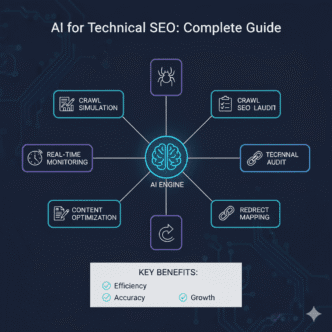
AI-powered technical SEO tools are changing how we audit, monitor, and optimize sites.
AI-Enhanced Crawl Budget Optimization
Machine learning tools analyze crawl patterns and automatically prioritize high-value pages while suppressing low-value URLs.
Tools like OnCrawl and Botify use AI to predict crawl behavior and recommend crawl budget allocation changes.
Autonomous Technical Auditing
AI auditing tools scan sites continuously, detect issues in real-time, and automatically generate prioritized fix lists.
Some tools can even auto-fix certain issues (like generating missing alt text or schema markup) without human intervention.
Predictive Performance Optimization
AI performance tools predict Core Web Vitals degradation before it happens based on code changes, traffic patterns, and resource loading behavior.
This allows proactive optimization rather than reactive fixes after rankings already dropped.
Voice Search and Entity Optimization
As voice search grows (comScore predicts 50% of searches will be voice by 2024), technical SEO must optimize for entity recognition and natural language queries.
Entity-based technical optimization:
- Structured data defining entities clearly
- Knowledge Graph optimization
- FAQ schema targeting voice queries
- Local Business schema for “near me” searches
For more on how AI is transforming SEO practices, explore the AI Search section on SEOProJournal.com.
FAQ: Technical SEO Fundamentals
Q: How long does it take to see results from technical SEO improvements?
Technical fixes can show impact within days (if Google re-crawls immediately) to 8-12 weeks (for competitive keywords). Core Web Vitals improvements typically show ranking changes within 4-6 weeks. Critical fixes (like removing accidental noindex tags) can restore traffic within 24-72 hours.
Q: Do I need technical SEO if my site is on WordPress or Shopify?
Yes. While these platforms handle some technical basics automatically, you still need to optimize robots.txt, XML sitemaps, redirects, page speed, mobile experience, structured data, and crawl efficiency. Platform defaults are rarely optimal for serious SEO.
Q: Can technical SEO alone get me to #1 rankings?
No. Technical SEO is the foundation, but you need strong content, backlinks, and on-page optimization to compete. Think of technical SEO as removing barriers—it doesn’t actively push you up, but it prevents you from being held down.
Q: What’s the single most important technical SEO factor?
If forced to choose one: crawlability. If search engines can’t access and crawl your content, nothing else matters. Ensure robots.txt isn’t blocking important pages, internal linking is strong, and your server responds quickly.
Q: How often should I run technical SEO audits?
Minimum: Quarterly audits for most sites. Ideal: Monthly audits for competitive sites. Continuous: Real-time monitoring via Google Search Console for any site serious about organic growth. Major audits after site redesigns, migrations, or platform changes.
Q: Should I hire a technical SEO specialist or can I DIY?
For small sites (under 1,000 pages) with basic needs, DIY with free tools is feasible. For larger sites, complex technical stacks (JavaScript frameworks, international targeting), or enterprise-level issues, hire a specialist. Technical mistakes can tank entire sites—expertise pays for itself quickly.
Final Thoughts: Building Your Technical SEO Foundation
Technical SEO fundamentals aren’t sexy. They don’t promise overnight ranking explosions or viral traffic spikes. They’re the unglamorous infrastructure holding everything else together.
But ignore them at your peril. A single misconfigured robots.txt file can deindex your entire site. A chain of redirects can waste half your crawl budget. Slow Core Web Vitals can cap your rankings no matter how brilliant your content.
Start with the non-negotiables:
✅ Ensure Googlebot can crawl your site (robots.txt, server response times, internal linking)
✅ Make sure important pages get indexed (XML sitemaps, canonical tags, status codes)
✅ Implement HTTPS (security and trust signals)
✅ Optimize for mobile-first indexing (responsive design, mobile performance)
✅ Meet Core Web Vitals thresholds (LCP, CLS, INP)
✅ Add structured data (Organization, Breadcrumb, Article schemas minimum)
Then layer on the advanced optimizations: log file analysis, JavaScript rendering, hreflang for international sites, faceted navigation control.
Technical SEO isn’t a one-time project. It’s continuous maintenance. Sites change. Google’s algorithms evolve. New technical requirements emerge.
Audit quarterly. Monitor continuously. Fix issues immediately.
Your content deserves a technical foundation that showcases it properly. Build that foundation right, and everything else gets easier.
Now open Google Search Console. Check your Coverage report. See what Google’s actually crawling and indexing. That’s your starting line.
For comprehensive strategies across all SEO dimensions, explore our complete guide on mastering on-page SEO elements.
The technical work never ends—but neither do the compounding benefits of getting it right.
Technical SEO Audit Dashboard
Monitor your site's technical health and crawlability in real-time
Core Web Vitals Performance
🤖 Googlebot Crawl Simulator
🔧 Critical Issues Requiring Attention
| Issue Type | Severity | Count | Impact | Priority |
|---|---|---|---|---|
| Redirect Chains (3+ hops) | Critical | 12 pages | Wastes crawl budget, slows loading | High |
| Missing Alt Text | Warning | 147 images | Accessibility and image SEO impact | Medium |
| Duplicate Meta Descriptions | Warning | 34 pages | Reduces CTR potential | Medium |
| Orphan Pages (No Internal Links) | Critical | 8 pages | Pages won't be discovered/ranked | High |
| Large Image Files (>200KB) | Warning | 89 images | Slows LCP and page speed | Medium |
| Missing Structured Data | Info | 23 pages | Missed rich result opportunities | Low |