Your SaaS website looks beautiful. The UI is sleek, the animations are smooth, and your design team just won a high-five from the CEO.
But here’s the problem: Google can’t see any of it.
I’ve watched too many SaaS companies invest \$50K+ in a gorgeous website redesign, only to see their organic traffic plummet by 60% within weeks. Why? Because technical SEO for SaaS got completely ignored in favor of pretty pixels.
Let me be brutally honest: If Google’s bots can’t crawl your site, index your pages, or understand your content, all your SEO efforts are worthless. It doesn’t matter how amazing your blog posts are or how many backlinks you build.
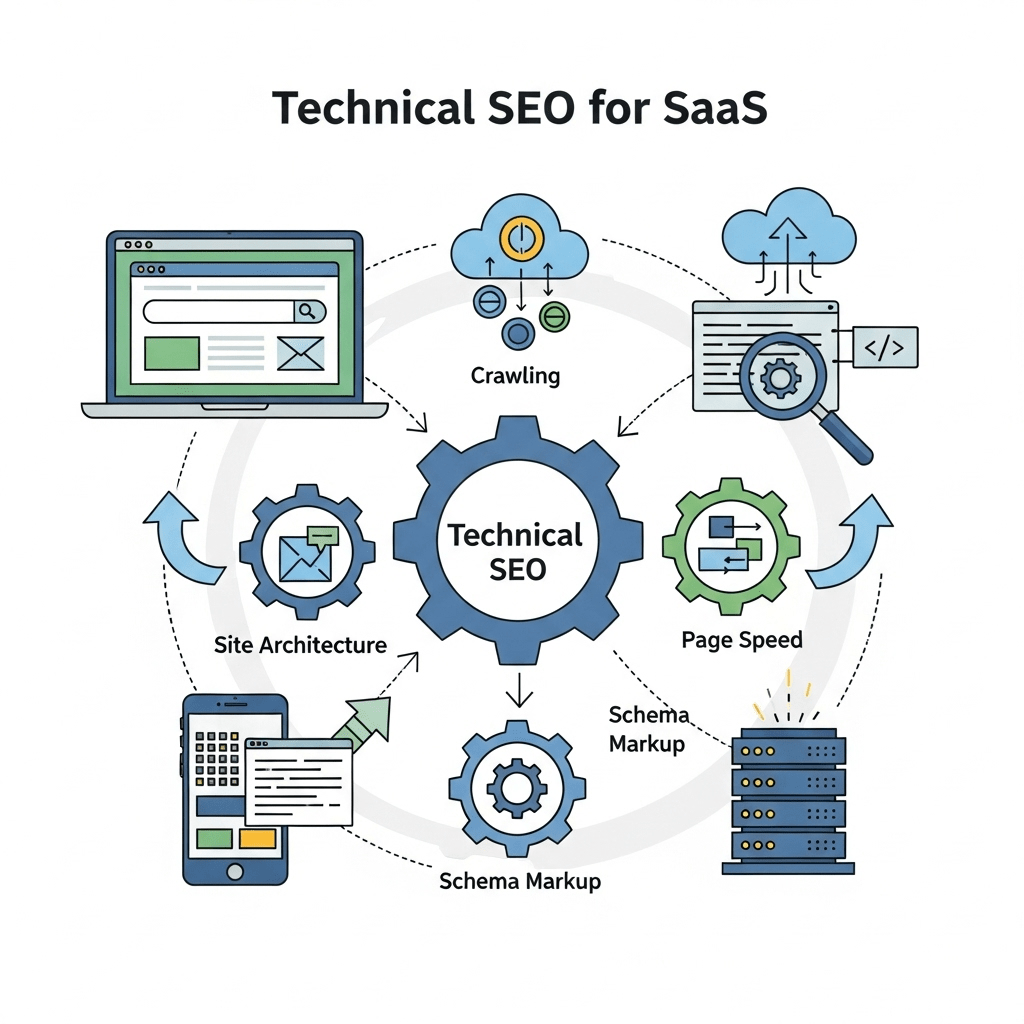
Today, I’m walking you through the exact technical SEO checklist for software companies that’ll fix your crawlability issues before they kill your rankings.
Table of Contents
ToggleWhy Is Technical SEO Critical for SaaS Websites?
Most SaaS websites are technical nightmares from an SEO perspective. I’m not trying to be mean—it’s just the reality of modern web development.
Your developers built a React or Vue.js application that looks incredible to humans but appears as a blank page to search engine crawlers. Your product pages load in 8 seconds because of unnecessary JavaScript libraries. Your staging environment got indexed by accident and now competes with your real site.
According to <a href=”https://httparchive.org/reports/state-of-the-web” rel=”nofollow”>HTTP Archive data</a>, the average web page now requires 2.1 MB of JavaScript alone. For SaaS sites with complex product demos and dashboards, that number often exceeds 5 MB.
Here’s what happens when SaaS website crawlability is broken:
- Google can’t discover your new content
- Important pages don’t get indexed
- Your rankings drop for no apparent reason
- Page speed issues increase bounce rates
- Mobile users have a terrible experience
The good news? Most technical SEO issues are fixable once you know what to look for.
What Are the Most Common Technical SEO Issues on SaaS Websites?
Let me show you the common technical SEO mistakes in SaaS that I see constantly—and how to spot them on your own site.
JavaScript Rendering Problems
This is the #1 killer of SaaS SEO. Your site is built entirely in React, Angular, or Vue without proper server-side rendering (SSR) or static generation.
The problem: Google has to execute JavaScript to see your content. This delays indexing, wastes crawl budget, and sometimes fails completely.
How to check: Visit your site, right-click, and “View Page Source.” If you see mostly empty <div> tags with no actual content, you have a JavaScript rendering issue.
The fix: Implement one of these solutions:
- Server-side rendering (SSR) with Next.js, Nuxt.js, or similar
- Static site generation (SSG) for marketing pages
- Dynamic rendering for Googlebot specifically
- Prerendering services like Prerender.io
Real example: Webflow migrated their marketing pages from a fully client-side React app to Next.js with SSR. Their organic traffic increased 40% within six months because Google could finally crawl and index their content properly.
Slow Page Speed Destroying User Experience
According to <a href=”https://web.dev/articles/vitals” rel=”nofollow”>Google’s Core Web Vitals research</a>, 53% of mobile users abandon sites that take longer than 3 seconds to load.
For SaaS sites with complex product features, slow load times are incredibly common. Heavy JavaScript frameworks, unoptimized images, and third-party tracking scripts add up fast.
How to check: Run your site through <a href=”https://pagespeed.web.dev/” rel=”nofollow”>Google PageSpeed Insights</a> or <a href=”https://gtmetrix.com/” rel=”nofollow”>GTmetrix</a>.
The fix: We’ll dive deep into site speed optimization later in this post.
Broken Internal Link Structure
I’ve audited SaaS sites with 40% broken internal links. Product pages linking to deprecated features. Blog posts pointing to deleted help docs. Navigation menus with 404 errors.
The problem: Broken links waste crawl budget, create poor UX, and signal low quality to search engines.
How to check: Use Screaming Frog SEO Spider to crawl your entire site and identify broken links.
The fix:
- Redirect broken URLs to relevant alternatives (301 redirects)
- Remove or update links to non-existent pages
- Set up monitoring to catch future broken links
Duplicate Content from Staging/Development Sites
Your staging.yoursite.com got indexed by Google. Now you have hundreds of duplicate pages competing with your real site.
The problem: Google doesn’t know which version is canonical, diluting your ranking power.
How to check: Google search site:staging.yoursite.com or site:dev.yoursite.com
The fix:
- Add
noindexmeta tags to all staging environments - Use robots.txt to block crawlers from development sites
- Implement canonical tags pointing to production URLs
- Password-protect staging environments
Pro Tip: Add a conditional check in your staging environment that automatically applies noindex tags. This prevents accidental indexing even if developers forget to block crawlers.
Missing or Incorrect Schema Markup
Schema markup helps Google understand what your software does, your pricing structure, customer reviews, and more. Most SaaS sites ignore it completely.
The problem: You’re missing out on rich snippets in search results—star ratings, pricing info, and FAQ sections that increase click-through rates.
How to check: Use Google’s <a href=”https://search.google.com/test/rich-results” rel=”nofollow”>Rich Results Test</a> tool.
The fix: Implement schema markup for software including:
- SoftwareApplication schema for product pages
- Organization schema for your homepage
- FAQ schema for help content
- Review/AggregateRating schema for testimonials
Understanding SaaS SEO fundamentals helps you see how technical SEO fits into your overall strategy.
How Do You Conduct a Complete SaaS Technical Audit?
Let me walk you through the exact SaaS technical audit process I use for clients.
Step 1: Crawl Your Entire Website
Use Screaming Frog SEO Spider (free up to 500 URLs, paid for larger sites) to crawl your entire website.
What to look for:
- Total indexable pages vs total pages crawled
- HTTP status code errors (404s, 500s, 503s)
- Redirect chains and loops
- Pages with missing title tags or meta descriptions
- Duplicate content issues
- Broken images and resources
Export the full crawl data—you’ll reference it throughout your audit.
Step 2: Check Indexation Status in Google Search Console
Log into Google Search Console and review:
Coverage report: Shows which pages are indexed, which have errors, and which are excluded.
Common indexation issues:
- “Discovered – currently not indexed” (low-quality pages or crawl budget issues)
- “Crawled – currently not indexed” (content quality or duplicate issues)
- “Excluded by ‘noindex’ tag” (make sure these are intentional)
- “Blocked by robots.txt” (verify this is intentional)
Pro Tip: If you have thousands of pages in “Discovered – currently not indexed,” Google doesn’t think those pages are valuable enough to index. Focus on improving content quality and internal linking to those pages.
Step 3: Analyze Core Web Vitals Performance
Google Search Console’s “Core Web Vitals” report shows real-world performance data from actual users.
The three metrics that matter:
- Largest Contentful Paint (LCP): Should be under 2.5 seconds
- First Input Delay (FID) / Interaction to Next Paint (INP): Should be under 200ms
- Cumulative Layout Shift (CLS): Should be under 0.1
According to research from Google, pages meeting Core Web Vitals thresholds have 24% lower abandonment rates.
If your pages show “Poor” status, prioritize fixing these issues immediately.
Step 4: Review Mobile Usability
Over 60% of B2B searches happen on mobile devices. Your SaaS site MUST work perfectly on phones and tablets.
Check these mobile issues:
- Text too small to read
- Clickable elements too close together
- Content wider than screen
- Mobile viewport not configured
Use Google Search Console’s “Mobile Usability” report and test manually on real devices.
Step 5: Examine Site Architecture and URL Structure
Your site structure should follow a clear hierarchy:
Homepage
 ├── Product Pages (2-3 clicks from home)
 ├── Features (2-3 clicks from home)
 ├── Use Cases (2-3 clicks from home)
 ├── Pricing (1-2 clicks from home)
 ├── Blog (2 clicks from home)
 │    └── Blog Posts (3 clicks from home)
 └── Resources (2-3 clicks from home)
URL best practices:
- Use descriptive, keyword-rich URLs:
/features/email-automationnot/feat?id=123 - Keep URLs short (under 60 characters ideal)
- Use hyphens, not underscores
- Avoid unnecessary parameters
- Maintain consistent structure
Real example: HubSpot restructured their site architecture, consolidating scattered product pages into a clear hierarchy. Organic traffic increased 35% as Google better understood their site structure.
How Do You Fix JavaScript Rendering Issues for SaaS SEO?
This is where most JavaScript rendering issues for SaaS SEO get complicated. Let me simplify it.
Understanding How Google Renders JavaScript
Google uses a two-phase crawling process:
Phase 1: Initial HTML crawl (happens immediately) Phase 2: JavaScript rendering (happens later, sometimes days after)
If your content only appears after JavaScript executes, Google might not see it during phase 1. This delays indexing and can cause content to be missed entirely.
Solution 1: Server-Side Rendering (SSR)
SSR renders your pages on the server before sending them to the browser. Google sees fully-formed HTML immediately.
Best frameworks:
- Next.js (for React)
- Nuxt.js (for Vue)
- Angular Universal (for Angular)
- SvelteKit (for Svelte)
Pros: Best SEO performance, improved Core Web Vitals, better user experience Cons: More complex setup, higher server costs, requires Node.js infrastructure
Solution 2: Static Site Generation (SSG)
Pre-render your marketing pages as static HTML at build time.
When to use: Blog posts, landing pages, documentation, anything that doesn’t need real-time data.
Tools: Next.js, Gatsby, Astro, Hugo
Pros: Fastest performance, lowest server costs, excellent SEO Cons: Requires rebuild for content updates, not suitable for dynamic content
Solution 3: Dynamic Rendering
Serve different content to Googlebot vs regular users—fully rendered HTML to bots, client-side JavaScript to humans.
Tools: Prerender.io, Rendertron, CloudFlare Workers
Pros: Quick fix for existing sites, no major architecture changes Cons: Violates “don’t cloak” guidelines if implementations differ significantly, maintenance overhead
Pro Tip: For SaaS sites, use a hybrid approach—SSR or SSG for marketing pages (blog, features, pricing) and client-side rendering for authenticated product dashboards where SEO doesn’t matter.
Testing Your JavaScript Implementation
Use Google’s Mobile-Friendly Test or Rich Results Test to see exactly what Googlebot renders:
- Enter your URL
- View “Screenshot” to see rendered version
- View “More Info” → “Page source” for raw HTML
- Compare what you see vs what Googlebot sees
If content is missing in the screenshot, you have a JavaScript rendering problem.
What’s the Complete Checklist to Improve Page Speed for SaaS Sites?
Let’s tackle how to improve page speed for SaaS sites with actionable steps you can implement today.
Image Optimization (Biggest Quick Win)
Images typically account for 50-70% of page weight. Optimize them aggressively.
Action items:
- Convert all images to WebP format (90% smaller than JPEG with same quality)
- Implement lazy loading for below-the-fold images
- Use responsive images with srcset attributes
- Compress images with tools like ImageOptim or TinyPNG
- Set explicit width/height to prevent layout shift
Code example:
<img src="feature.webp"
     srcset="feature-small.webp 480w, feature-large.webp 1200w"
     sizes="(max-width: 768px) 480px, 1200px"
     loading="lazy"
     width="1200"
     height="630"
     alt="Product feature screenshot">
JavaScript and CSS Optimization
Modern SaaS sites load 2-5 MB of JavaScript. That’s insane.
Action items:
- Remove unused JavaScript libraries (audit with Chrome DevTools Coverage tab)
- Code-split your JavaScript to load only what’s needed per page
- Defer non-critical JavaScript with
asyncordeferattributes - Minify and compress all JavaScript and CSS files
- Eliminate render-blocking resources above the fold
Real example: Intercom reduced their JavaScript bundle from 3.2 MB to 800 KB by removing unused libraries and implementing aggressive code-splitting. Time to Interactive improved by 4 seconds.
Implement a Content Delivery Network (CDN)
CDNs cache your content on servers worldwide, serving files from locations closest to your users.
Recommended CDNs for SaaS:
- Cloudflare (free tier available, excellent for startups)
- Amazon CloudFront (if you’re already on AWS)
- Fastly (enterprise-grade, excellent for larger SaaS)
- BunnyCDN (cost-effective alternative)
Expected improvement: 30-60% reduction in load times for international users.
Enable Compression and Caching
Gzip/Brotli compression: Reduces file sizes by 60-80% during transfer.
Check if enabled: Use Google PageSpeed Insights or check response headers for content-encoding: gzip
Browser caching: Tell browsers to cache static assets locally.
Set cache headers for:
- Images: 1 year
- CSS/JS: 1 year (with versioned filenames)
- HTML: No cache or short cache (5 minutes)
Optimize Fonts
Web fonts can add 300-800 KB to page weight and cause invisible text during loading.
Action items:
- Use
font-display: swapto show fallback fonts immediately - Preload critical fonts with
<link rel="preload"> - Subset fonts to include only needed characters
- Use system fonts where possible (they’re free and fast)
Pro Tip: Google Fonts users can switch to <a href=”https://github.com/google/fonts” rel=”nofollow”>self-hosted Google Fonts</a> for 50-70% faster font loading by eliminating external requests.
Core Web Vitals Optimization Table
| Metric | Target | Key Fixes |
|---|---|---|
| LCP (Largest Contentful Paint) | < 2.5s | Optimize hero images, reduce server response time, implement CDN |
| INP (Interaction to Next Paint) | < 200ms | Reduce JavaScript execution time, defer non-critical scripts |
| CLS (Cumulative Layout Shift) | < 0.1 | Set image dimensions, reserve space for ads, avoid inserting content above existing content |
Understanding technical SEO foundations helps you see how speed optimization fits into the bigger picture.
How Do You Optimize Mobile Experience for SaaS Sites?
Mobile optimization SaaS isn’t optional—it’s essential. Here’s how to nail it.
Responsive Design Essentials
Your site must adapt seamlessly to all screen sizes.
Testing checklist:
- Test on real devices (iPhone, Android phones, tablets)
- Use Chrome DevTools Device Mode for quick testing
- Check navigation menus work on mobile
- Ensure CTAs are thumb-friendly (48x48px minimum)
- Verify forms are easy to complete on small screens
Common mobile issues to fix:
- Text smaller than 16px (causes zoom on mobile)
- Buttons/links too close together (< 8px spacing)
- Horizontal scrolling required
- Pop-ups covering entire screen with hard-to-close X buttons
Improve Mobile Page Speed
Mobile users have slower connections and less powerful devices. Your desktop speed doesn’t translate to mobile performance.
Mobile-specific optimizations:
- Reduce image sizes further for mobile (use srcset)
- Simplify animations and transitions
- Lazy load more aggressively on mobile
- Consider AMP for blog posts (though less critical now)
- Test on 3G connections, not just WiFi
Mobile-First Indexing
Google now uses the mobile version of your site for indexing and ranking—even for desktop searches.
Ensure mobile parity:
- All content on desktop appears on mobile
- Structured data exists on mobile version
- Meta tags consistent across versions
- Images optimized but not missing entirely
Pro Tip: Google Search Console separates desktop and mobile in Core Web Vitals reporting. Fix mobile issues FIRST since that’s what Google indexes.
What Schema Markup Should SaaS Companies Implement?
Schema markup for software helps Google understand your product and display rich results.
Essential Schema Types for SaaS
1. SoftwareApplication Schema
Use on product pages to describe your software:
{
  "@context": "https://schema.org",
  "@type": "SoftwareApplication",
  "name": "YourSaaS",
  "applicationCategory": "BusinessApplication",
  "operatingSystem": "Web-based",
  "offers": {
    "@type": "Offer",
    "price": "49",
    "priceCurrency": "USD"
  },
  "aggregateRating": {
    "@type": "AggregateRating",
    "ratingValue": "4.8",
    "reviewCount": "2847"
  }
}
2. Organization Schema
Use on your homepage:
{
  "@context": "https://schema.org",
  "@type": "Organization",
  "name": "YourSaaS",
  "url": "https://yoursite.com",
  "logo": "https://yoursite.com/logo.png",
  "sameAs": [
    "https://twitter.com/yourcompany",
    "https://linkedin.com/company/yourcompany"
  ]
}
3. FAQ Schema
Use on help pages and FAQ sections:
{
  "@context": "https://schema.org",
  "@type": "FAQPage",
  "mainEntity": [{
    "@type": "Question",
    "name": "How much does YourSaaS cost?",
    "acceptedAnswer": {
      "@type": "Answer",
      "text": "Our pricing starts at $49/month..."
    }
  }]
}
4. Review Schema
Use on testimonial or case study pages (only for genuine reviews):
{
  "@context": "https://schema.org",
  "@type": "Review",
  "itemReviewed": {
    "@type": "SoftwareApplication",
    "name": "YourSaaS"
  },
  "author": {
    "@type": "Person",
    "name": "Jane Smith"
  },
  "reviewRating": {
    "@type": "Rating",
    "ratingValue": "5"
  }
}
Test all schema implementation with Google’s <a href=”https://search.google.com/test/rich-results” rel=”nofollow”>Rich Results Test</a>.
Real example: Monday.com implements comprehensive schema markup across their site. Their search listings show star ratings, pricing, and software category—dramatically improving CTR compared to plain blue links.
How Do You Fix Common Crawlability Issues?
Let’s tackle how to fix technical SEO issues on SaaS websites with specific crawlability problems.
Robots.txt Problems
Your robots.txt file controls which pages search engines can crawl.
Common mistakes:
- Accidentally blocking important pages
- Blocking CSS/JavaScript files (prevents proper rendering)
- No robots.txt file at all (less control over crawling)
- Conflicting directives
How to check: Visit yoursite.com/robots.txt
Best practice robots.txt for SaaS:
User-agent: *
Allow: /
Disallow: /admin/
Disallow: /staging/
Disallow: /api/
Disallow: /*?*session=
Sitemap: https://yoursite.com/sitemap.xml
XML Sitemap Issues
Sitemaps tell Google which pages exist and how often they update.
Sitemap best practices:
- Include only indexable pages (no 404s, no redirects, no noindex pages)
- Keep individual sitemaps under 50,000 URLs
- Split by content type (pages, blog, help docs)
- Update lastmod dates when content changes
- Submit sitemap in Google Search Console
Pro Tip: Dynamic sitemaps that automatically update when you publish content prevent stale sitemap issues. Most modern CMSs and frameworks support this.
Canonical Tag Mistakes
Canonical tags tell Google which version of a page is the “master” when duplicates exist.
Common mistakes:
- Self-referencing canonicals pointing to wrong URLs
- Canonical chains (A→B→C instead of A→C, B→C)
- Missing canonicals on paginated pages
- Canonical to a 404 or redirected URL
How to check: View page source and search for <link rel="canonical"
Pagination and Infinite Scroll SEO
Many SaaS blog archives use pagination or infinite scroll—both create crawlability challenges.
For pagination:
- Use
rel="next"andrel="prev"tags (deprecated but still helpful) - Make paginated pages indexable with unique titles
- Add “View All” option when practical
- Implement proper canonical tags
For infinite scroll:
- Implement “Load More” button fallback for crawlers
- Use History API to create unique URLs for each “page”
- Ensure paginated URLs are crawlable
- Consider avoiding infinite scroll for SEO-critical pages
Learning about content optimization strategies shows how technical fixes enable your content to rank.
What Tools Do You Need for Technical SEO Audits?
Here’s my essential toolkit for technical SEO for SaaS audits.
| Tool | Purpose | Cost | Best For |
|---|---|---|---|
| Screaming Frog | Site crawling & analysis | Free/£149/yr | Finding broken links, duplicate content, missing tags |
| Google Search Console | Indexation & performance | Free | Understanding how Google sees your site |
| Google PageSpeed Insights | Performance testing | Free | Core Web Vitals and speed recommendations |
| GTmetrix | Detailed speed analysis | Free/Premium | Identifying specific performance bottlenecks |
| Ahrefs Site Audit | Comprehensive technical audit | $99-999/mo | Automated monitoring of technical issues |
| Semrush Site Audit | Technical health monitoring | $119-449/mo | Regular automated crawls and alerts |
You don’t need all of these. Start with Google Search Console (free) and Screaming Frog (free for <500 URLs), then add paid tools as you scale.
How Does AI Search Impact Technical SEO for SaaS?
With Google’s Search Generative Experience rolling out, technical SEO requirements are evolving.
What’s Changing with AI-Powered Search
Structured data matters more: AI pulls from structured data to generate responses. Implement comprehensive schema markup.
Page speed is even more critical: AI summaries appear fast—if your page loads slowly, users won’t wait for it.
JavaScript must render properly: AI needs to access your full content, not just initial HTML.
Clear content hierarchy: AI extracts information better from well-structured pages with clear headings and sections.
Optimizing for SGE and AI Overviews
Use structured data extensively: Product schema, FAQ schema, HowTo schema—all feed AI responses.
Optimize for featured snippets: AI often pulls from featured snippet content. Structure answers clearly with definitions and lists.
Implement breadcrumb navigation: Helps AI understand site structure and content relationships.
Ensure mobile-first design: AI responses appear prominently on mobile—your site must work perfectly on all devices.
Pro Tip: Test your pages with Google’s Rich Results Test to ensure structured data is properly implemented. This data directly feeds AI-generated responses.
Understanding how AI impacts SaaS SEO helps you prepare for the future of search.
Technical SEO Checklist: Your Complete Action Plan
Here’s your comprehensive technical SEO checklist for software companies to implement immediately.
Foundation (Week 1):
- [ ] Crawl entire site with Screaming Frog
- [ ] Set up Google Search Console
- [ ] Submit XML sitemap
- [ ] Review robots.txt file
- [ ] Check indexation status
JavaScript & Rendering (Week 2):
- [ ] Test JavaScript rendering with Mobile-Friendly Test
- [ ] Implement SSR, SSG, or dynamic rendering if needed
- [ ] Verify all content visible in page source
- [ ] Fix any rendering delays
Speed Optimization (Week 3):
- [ ] Run PageSpeed Insights on key pages
- [ ] Optimize and convert images to WebP
- [ ] Implement lazy loading
- [ ] Enable Gzip/Brotli compression
- [ ] Set up CDN
- [ ] Defer non-critical JavaScript
- [ ] Fix Core Web Vitals issues
Mobile Optimization (Week 4):
- [ ] Test on real mobile devices
- [ ] Fix mobile usability issues
- [ ] Ensure mobile-first indexing readiness
- [ ] Optimize mobile page speed separately
- [ ] Check mobile-specific Core Web Vitals
Schema & Structure (Week 5):
- [ ] Implement SoftwareApplication schema
- [ ] Add Organization schema
- [ ] Include FAQ schema on relevant pages
- [ ] Add Review schema for testimonials
- [ ] Test with Rich Results Test
Ongoing Maintenance:
- [ ] Monthly technical audits
- [ ] Weekly Search Console review
- [ ] Quarterly speed optimization checks
- [ ] Monitor Core Web Vitals trends
- [ ] Track crawl errors and fix immediately
Common Questions About Technical SEO for SaaS
How often should I run technical SEO audits?
Monthly for growing SaaS companies, quarterly minimum for established sites. Run immediate audits after major site changes, migrations, or redesigns.
Do I need SSR if my site is built in React?
For marketing pages (blog, features, pricing)—yes, absolutely. For authenticated product dashboards—no, client-side rendering is fine since those pages don’t need to rank.
What’s the biggest technical SEO mistake SaaS companies make?
Ignoring JavaScript rendering issues. Your beautiful React app appears as a blank page to Google, causing massive indexation problems.
How do I know if Google can crawl my site properly?
Check Google Search Console’s Coverage report. Look for “Crawled – currently not indexed” or “Discovered – currently not indexed” issues. Use URL Inspection tool to see exactly what Googlebot renders.
Should I block crawlers from my staging site?
Absolutely. Use robots.txt disallow rules, noindex meta tags, AND password protection. Triple protection prevents accidental indexing of staging content.
What page speed score should I target?
Aim for 90+ on PageSpeed Insights for marketing pages. More importantly, meet Core Web Vitals thresholds: LCP < 2.5s, INP < 200ms, CLS < 0.1.
How important is mobile optimization for B2B SaaS?
Critical. Over 60% of B2B searches happen on mobile. Google uses mobile-first indexing—your mobile site IS your site as far as rankings are concerned.
Can I use the same content on desktop and mobile?
Yes, in fact you should. Mobile-first indexing means Google indexes your mobile version. Content missing on mobile won’t help your rankings.
Look, I get it. Technical SEO for SaaS isn’t as sexy as creating viral content or building backlinks. But it’s absolutely essential.
You can write the world’s best blog posts, but if Google can’t crawl and index them, nobody will see them. You can build thousands of backlinks, but if your site loads in 8 seconds, users will bounce before they see anything.
Technical SEO is your foundation. Get it right, and everything else becomes easier. Get it wrong, and nothing else matters.
The good news? Most technical issues are fixable. You don’t need to be a developer to identify problems and work with your team to fix them.
Start with the biggest issues first—JavaScript rendering, page speed, and indexation problems. These alone account for 80% of technical SEO problems on SaaS sites.
Then tackle schema markup, mobile optimization, and fine-tuning. Layer on improvements monthly, and your technical foundation will become a competitive advantage.
Your competitors are probably ignoring most of this. That’s your opportunity.
Now stop reading and start auditing. Your organic traffic depends on it.
Related posts:
- WordPress Site Speed Optimization
- Currency, Payment Methods, and SEO: Local Trust Signals That Matter
- How File Names and Image Formats Affect SEO Performance: The Image Optimization Guide You Actually Need
- Technical SEO Fundamentals: The Complete Guide to Building a Crawlable, Fast, and Search-Ready Website